Joey — the family guide
Joey is a private baby tracker for one family. Feeds, sleeps, nappies, pumping, growth, medicines and milestones — each logged in a tap or two, from the app, from a home-screen widget, or straight from the lock screen without unlocking the phone. Every phone in the family sees the same day.
There are no accounts, no sign-ups, no ads. Nothing you log can be read by anyone outside your family.
New here?
- Get Joey on your phone — install it, and tell it about bub.
- Getting started with Joey — ten minutes, from first feed to first widget.
- Set up family sync — put both parents' phones on the same day.
How this guide is organised
Getting started — installing Joey, your first session, and sharing with the other phones in the family.
Logging the day — one page per thing you log: breastfeeds, bottles, sleep and nappies, pumping, fixing an entry after the fact, comments, and health and milestones.
Home screen and lock screen — adding widgets, the all-in-one control widget, and running a timer from the lock screen.
Looking back — growth centiles, trends and day breakdowns, and one whole day walked through end to end.
Your data — what Joey holds and where, how to get it out, how to delete it, what to do when something looks wrong, and what the About page and the occasional notice from us are for.
The words Joey uses
- Nappy, not diaper. Australian English throughout.
- Volumes in mL, temperatures in °C.
- Bub — whoever you are tracking, until you type a name in.
- Times show hours and minutes, never ticking seconds. The one exception is the stopwatch on a running timer on the lock screen.
Help
If something isn't working or isn't making sense, start with Something looks wrong. If that doesn't sort it, email joey@medapps.com.au — say what you saw, and which phone you were on.
Get Joey on your phone
Joey is free on the App Store and on Google Play.
On an iPhone
- Open the App Store and search for Joey Family Baby Tracker.
- Tap Get. Joey lands on your home screen like any other app.
- Updates arrive through the App Store. Nothing you've logged is lost.
On an Android phone
- Open Google Play and search for Joey Family Baby Tracker.
- Tap Install. Joey appears in your app drawer.
- Updates arrive through Google Play. Your entries stay.
The first time you open it
A phone that has never run Joey opens on a welcome screen: what Joey is, in three lines, and three ways in.
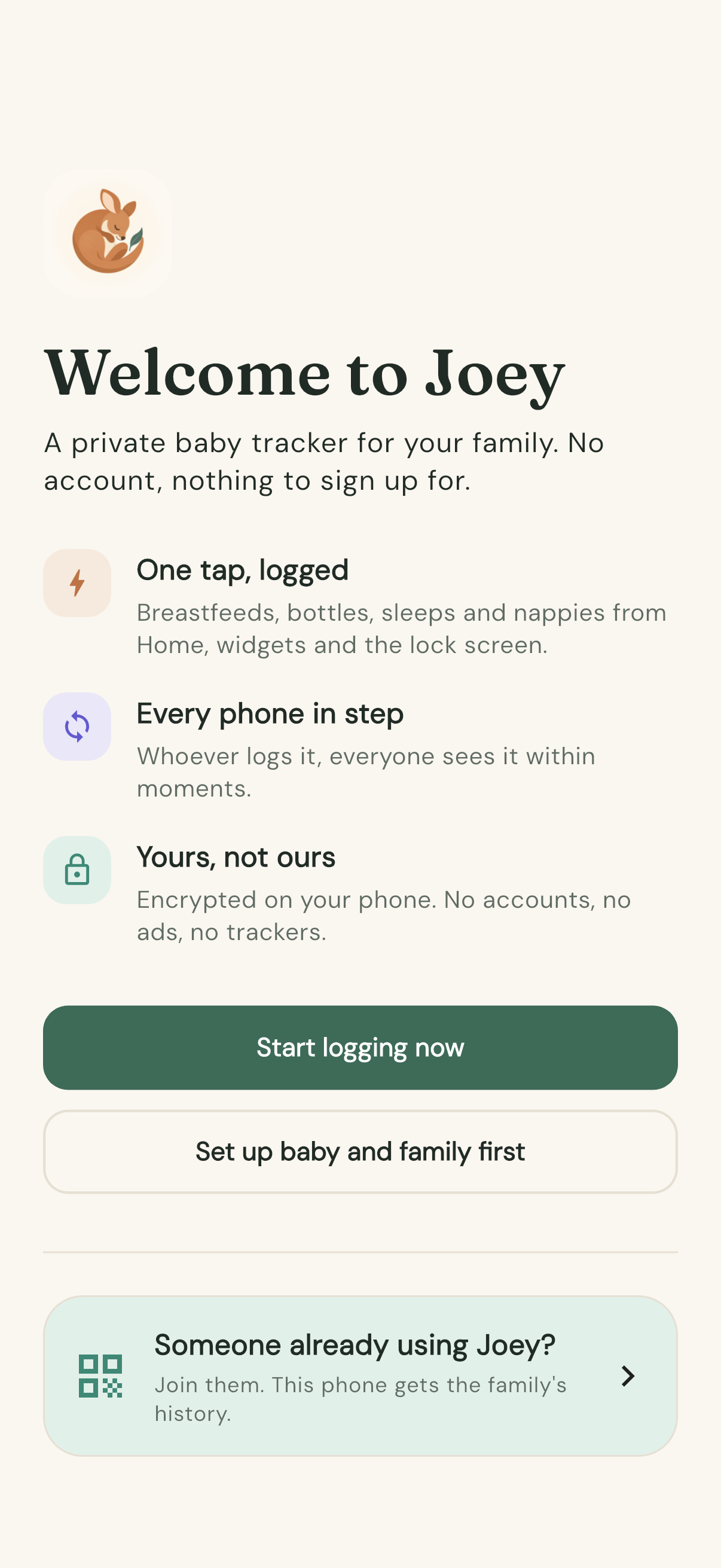
- Start logging now — straight to Home. Log a feed, a nappy, a sleep. Bub's details and family sharing can wait.
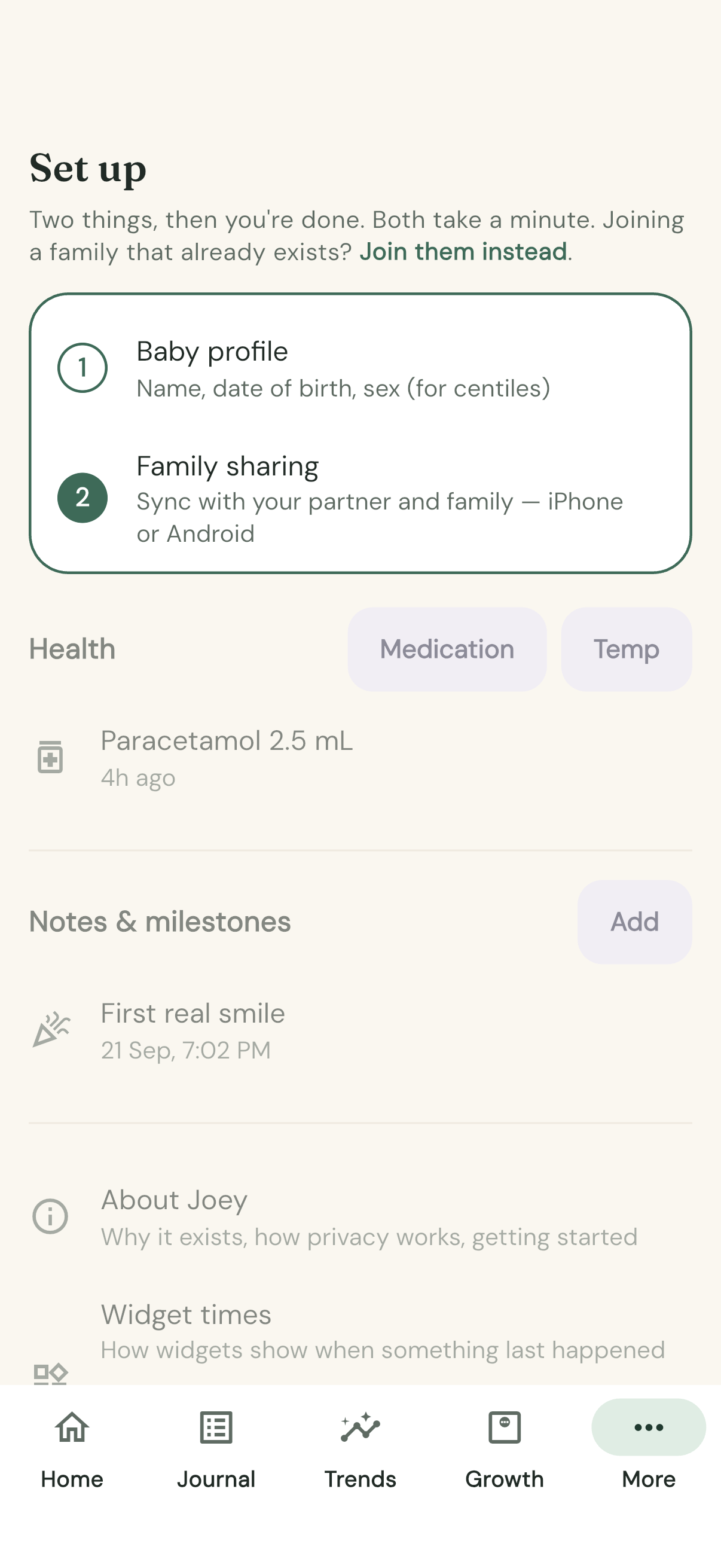
- Set up baby and family first — opens More with a two-step card at the top: 1 Baby profile and 2 Family sharing. Everything else on the tab is dimmed until you've done both, tapped Skip for now, or tapped something below the card.
- Someone already using Joey? — the card at the bottom. Tap it if another phone in the family already has Joey set up: it takes you straight to your join code, and this phone gets the family's history.
Whichever you pick, the welcome screen doesn't come back. Along the bottom of the app are five tabs: Home, Journal, Trends, Growth and More.
1. Tell Joey who you're tracking
- Tap the More tab.
- Tap Baby profile.
- Type bub's Name, tap the date row to pick the date of birth, and choose Girl or Boy.
- Tap Save.
All of it is optional — but the date of birth and sex are what the Growth tab needs to draw centile curves later.
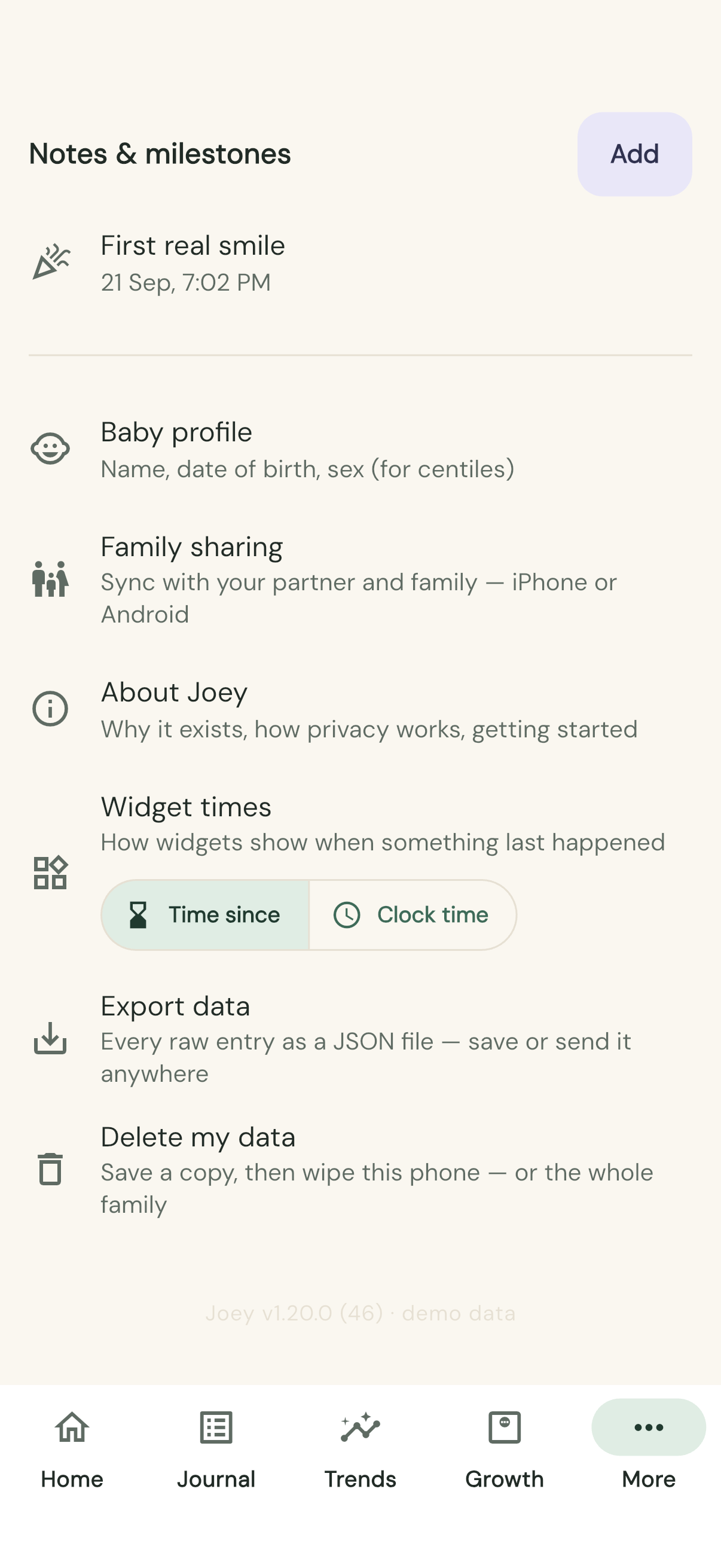
2. Start the family, or join it
Still on More, tap Family sharing.
- First phone? Name the phone, then pick Create our family.
- Someone already set it up? The quickest way is the Someone already using Joey? card on the welcome screen: name the phone and your join code appears. From More it's the same thing with one more tap — name the phone, pick Join the family, and show the code that appears to a parent.
Both paths are walked through step by step in Set up family sync.
Join before you log. A phone that joins a family takes on the family's shared history in place of anything logged on that phone beforehand.
You can also skip this and use Joey on one phone alone — it works perfectly well that way, and you can share later whenever you're ready.
Then what
Work through Getting started with Joey: your first feed, nappy and sleep, the Journal, and a widget on the home screen.
Getting started with Joey
For a parent opening Joey for the very first time. No prior knowledge needed.
In the next ten minutes you'll set up bub's profile, log your first breastfeed, nappy and sleep, find them again in the Journal, put a Joey widget on your home screen, and meet the lock-screen timer. That's everything you need for day-to-day tracking.
Joey on your phone already? Start at step 1. If not, five minutes with Get Joey on your phone comes first.
There's no account and no password. Nothing you log leaves your phone unless you set up family sharing.
1. A quick look around
Open Joey. The very first time, a welcome screen offers three ways in; tap Start logging now and you land on Home. (The other two choices — setting up bub and the family first, or joining a family that already uses Joey — are covered in Get Joey on your phone.)
Along the bottom are five tabs: Home, Journal, Trends, Growth and More. This tutorial lives on Home, Journal and More.
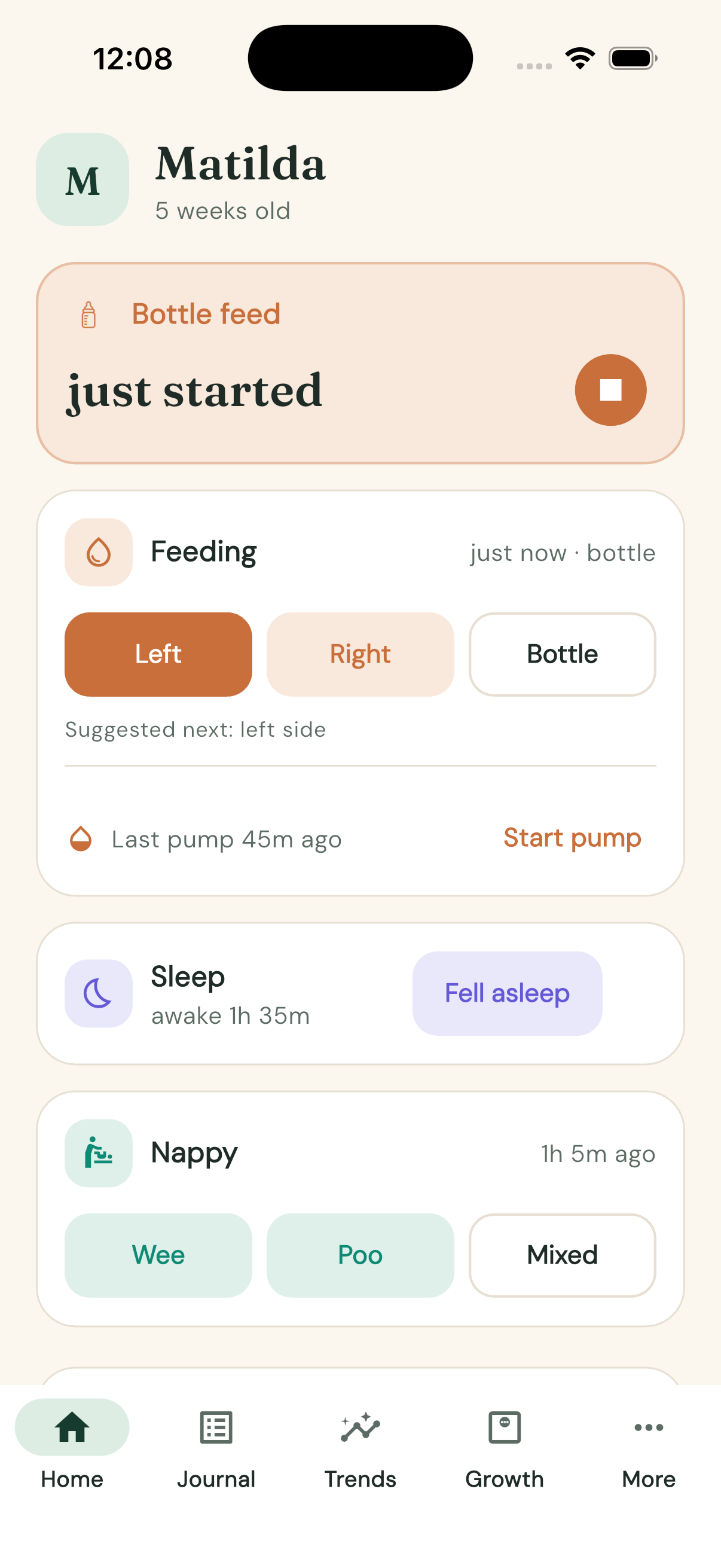
Home is the tab you'll live on: a Feeding card, a Sleep card, a Nappy card, and a Today summary underneath.
The coloured banner at the top only appears while a timer is running. You'll make one of your own in a moment.
2. Set up the Baby profile
- Tap the More tab.
- Tap Baby profile ("Name, date of birth, sex (for centiles)").
- Type bub's Name.
- Tap the date row and pick the date of birth.
- Choose Girl or Boy.
- Tap Save.
All of it is optional — but the date of birth and sex are what the Growth tab needs for centiles later. Joey never asks for an email or a password.
3. Log your first breastfeed
Back to Home. The Feeding card has three buttons: Left, Right and Bottle. One side button is filled in — that's Joey's suggestion for the next side, and a caption under it spells it out: "Suggested next: left side".
- Tap Left. A coloured banner appears at the top reading "Breastfeeding — Left". It says "just started", then counts up in minutes.
- When bub swaps sides in real life, tap Switch side (the arrows) on the banner. The title changes to "Breastfeeding — Right", and Joey keeps the switch.
- When the feed is done, tap Stop (the square).
Saved instantly. No form to fill in. Next time, the other side will be the suggested one.
Tip: the banner also has a Move to bottle button. If bub comes off the breast and finishes with a bottle, one tap stops the breastfeed and starts a bottle timer. When you stop the bottle, Joey asks "How much did bub take?" so you can type the mL — and Finish without amount is there if you didn't measure.
4. Log a nappy
The Nappy card has three buttons: Wee, Poo and Mixed.
Tap whichever applies. That's the whole thing — no timer, no confirmation.
5. Track a sleep
The Sleep card is a toggle.
- When bub nods off, tap Fell asleep. A sleep banner appears with the running time.
- When bub wakes, tap Wake up on the banner.
Between sleeps, the Sleep card shows how long bub has been awake — handy for judging when the next nap is due.
6. See it all in the Journal
Tap the Journal tab. Everything you just logged is there, newest first, with a time column and colour-coded badges. Your breastfeed reads something like "Breastfed 12m · L 5m → R 7m" — the arrow is your side switch, with the minutes spent on each side.
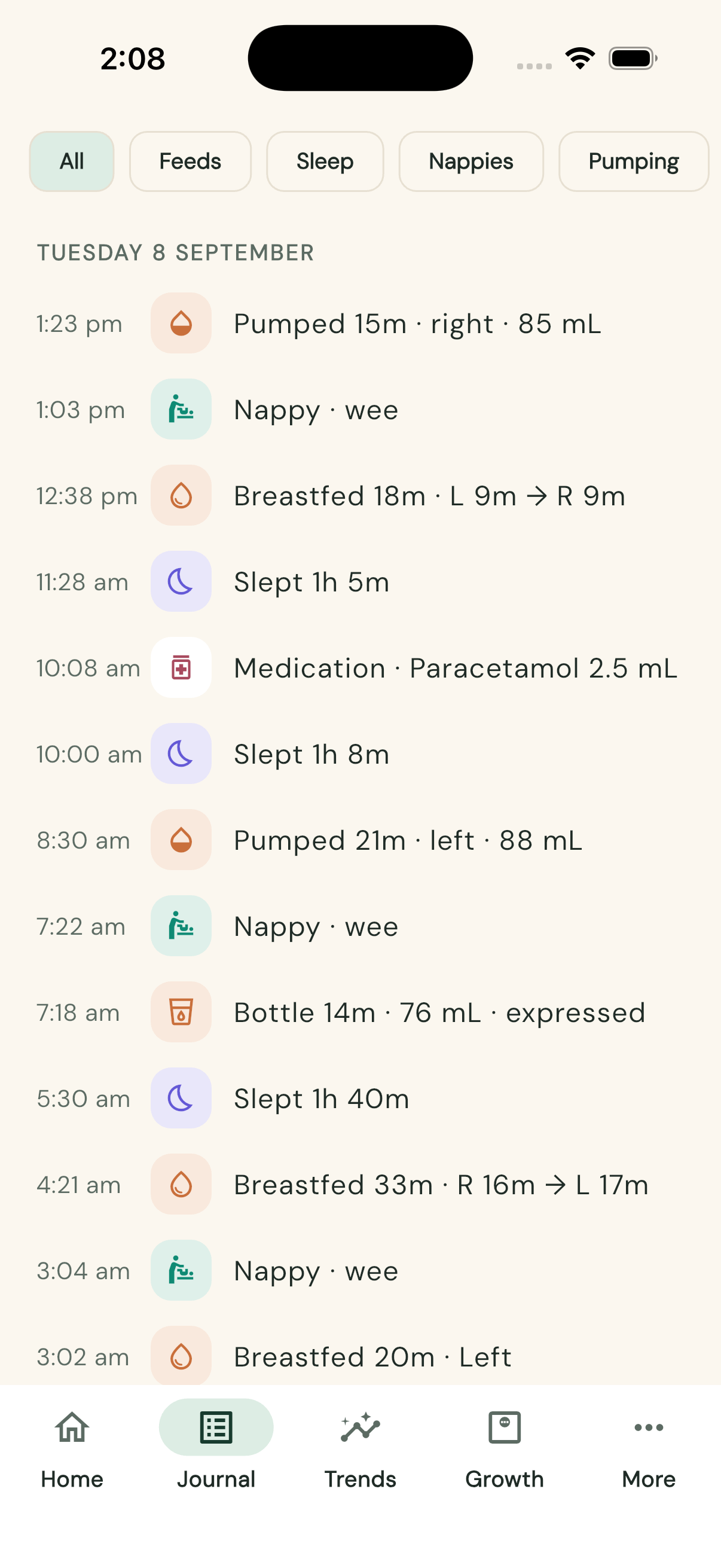
- Try the filter chips along the top: All, Feeds, Sleep, Nappies, Pumping, Other.
- Got a detail wrong? Tap the entry. An edit sheet opens filled in — tap a time row to retype it, change the side with a tap, type an amount, then swipe the sheet down. Everything saves as you go; there's no Save button.
- Stopped a timer too soon? Tap the entry and hit Resume — still going. The timer picks straight back up — banner, widgets and all.
- Logged something by mistake? Swipe the entry left and confirm Delete. Wrong one? Tap Undo on the bar that appears, or shake the phone within a minute.
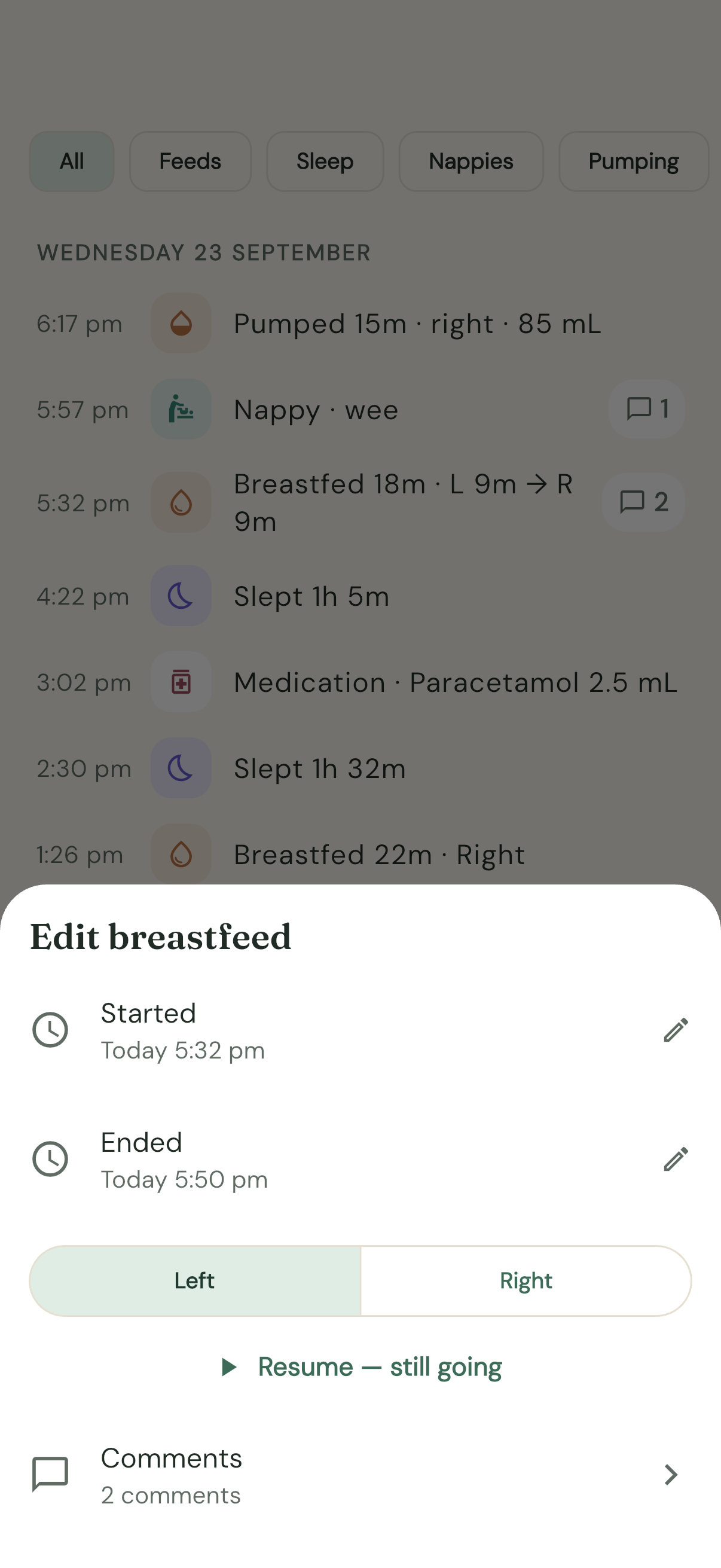
Edits, resumes and deletes all reach the rest of the family like any other change. For the finer points — backdating something you forgot, adding the mL to a bottle you stopped from a widget — see How to edit or backdate entries.
7. Put the Feeding widget on your home screen
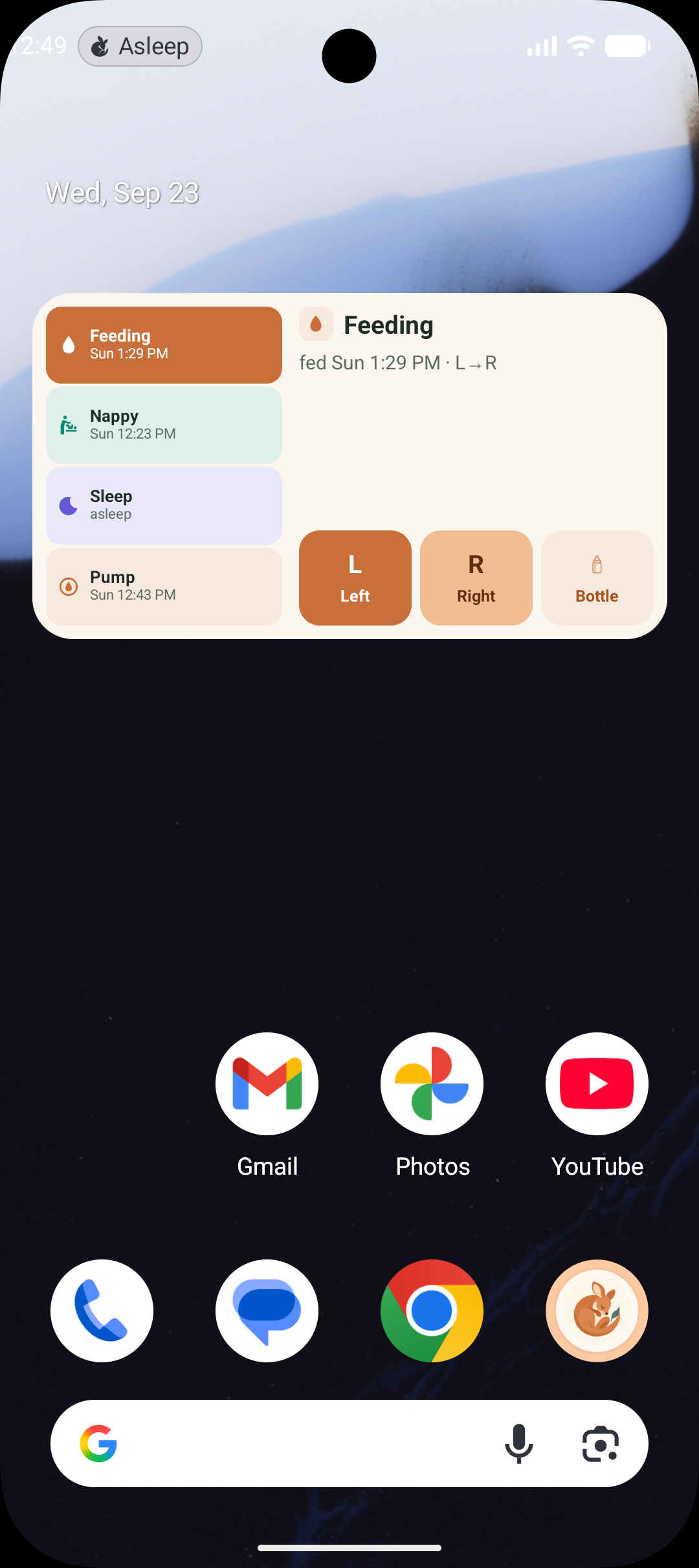
The best part of Joey is not opening Joey. The Feeding widget puts Left, Right and Bottle on your home screen, and they work without launching the app.
On an iPhone
- Long-press empty space on the home screen until the apps jiggle.
- Tap Edit in the top corner, then Add Widget.
- Search for Joey.
- Swipe across to the Feeding widget, pick a size, tap Add Widget.
- Tap Done.
On an Android phone
Long-press the home screen, tap Widgets, find Joey, and drag the Feeding widget where you want it.
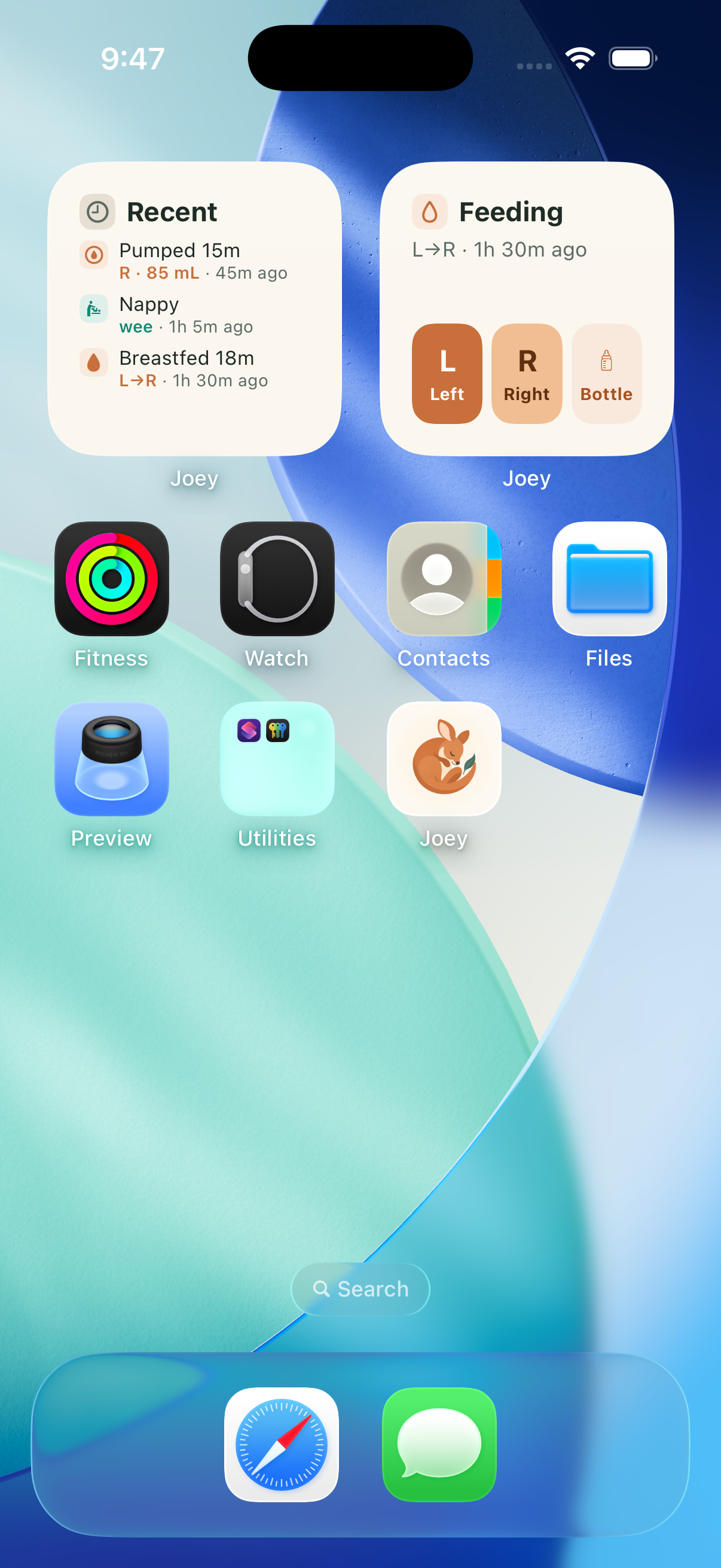
The widget shows the feeding buttons plus your last feed, e.g. "L→R · 2h 5m ago". Tap Left and the timer starts — give it a second or three while Joey does the work in the background.
There are six widgets in all: Feeding, Sleep, Nappy, Pump, Recent activity, and the all-in-one Joey control. Add more the same way whenever you like — see How to add and configure widgets.
8. Meet the lock-screen timer
Start any timer — tap Fell asleep, say — and lock your phone.
The running timer shows on your lock screen with buttons right there: a sleep shows Wake up; a breastfeed shows Switch, Bottle and Stop. On an iPhone it also appears in the Dynamic Island. The very first time, your phone asks permission to show it — say yes.

You can now run an entire overnight feed without unlocking your phone. More in How to use the lock screen and Dynamic Island.
Where to next
- Trends shows the last seven days as a pattern chart — tap any day for the full breakdown.
- Growth plots weight, length and head circumference on WHO centile curves, using the profile from step 2.
- More → Health logs medicines and temperatures; Notes & milestones catches everything else.
- More → Widget times chooses whether widgets say "fed 2h ago" or "fed at 3:12 pm".
- More → Export data saves every entry as a file, any time you like.
- More → Family sharing puts the other parent's phone on the same day: How to set up family sync.
Happy tracking.
How to set up family sync
Get both parents' phones — and grandma's, if you like — showing the same day. One phone starts the family; every other phone is approved in person.
Once it's on, a feed started on one phone shows on the other within seconds. Either of you can stop it. The Journal, the totals, the charts and the widgets all show the same thing on every phone.
There are no accounts, no passwords, and no code you have to keep secret.
Start here: name this phone
On every phone, the first two taps are the same.
- Open Joey, tap the More tab, tap Family sharing.
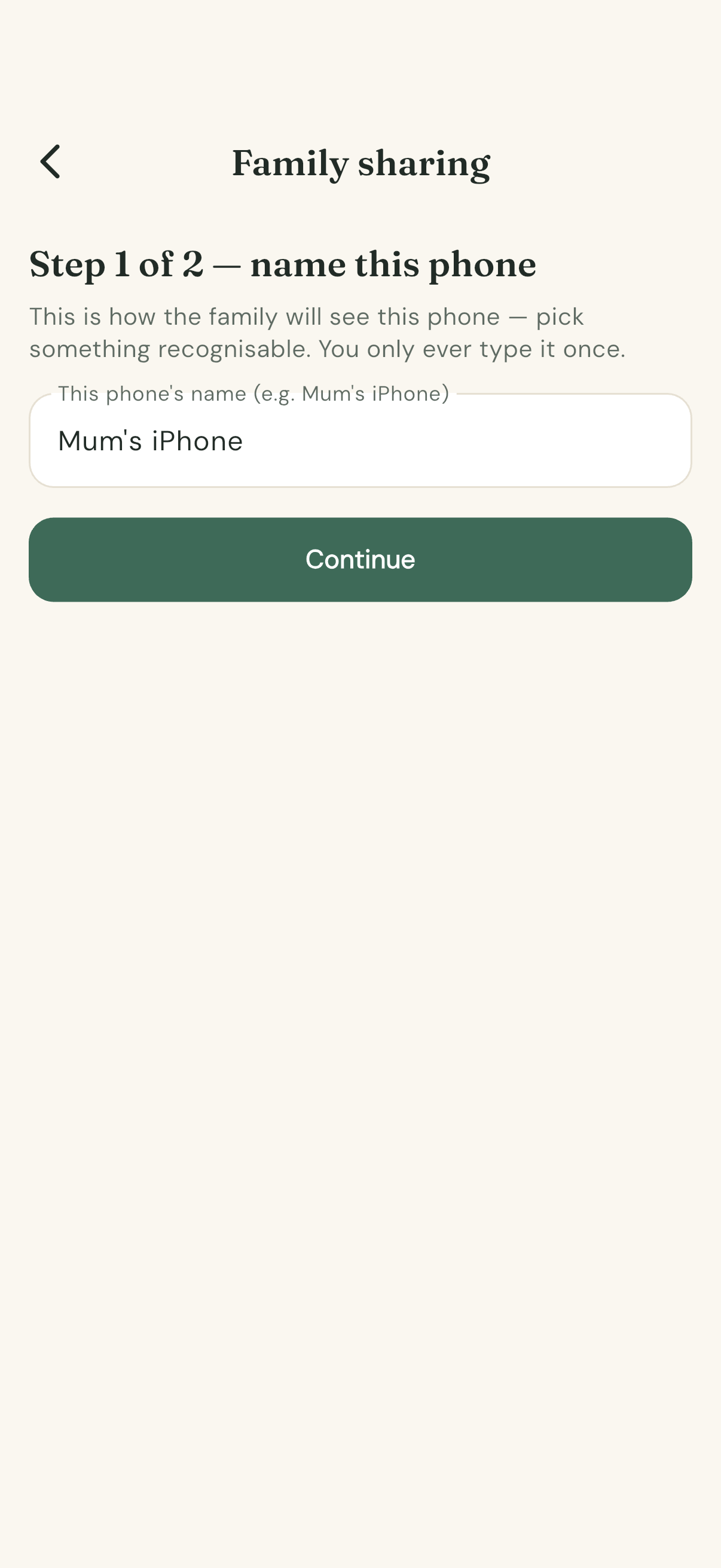
- Step 1 of 2 — name this phone. Type something you'll recognise in a list: "Mum's iPhone", "Dad's Pixel", "Grandma's phone". This is how the rest of the family sees this phone, and you only ever type it once.
- Tap Continue.
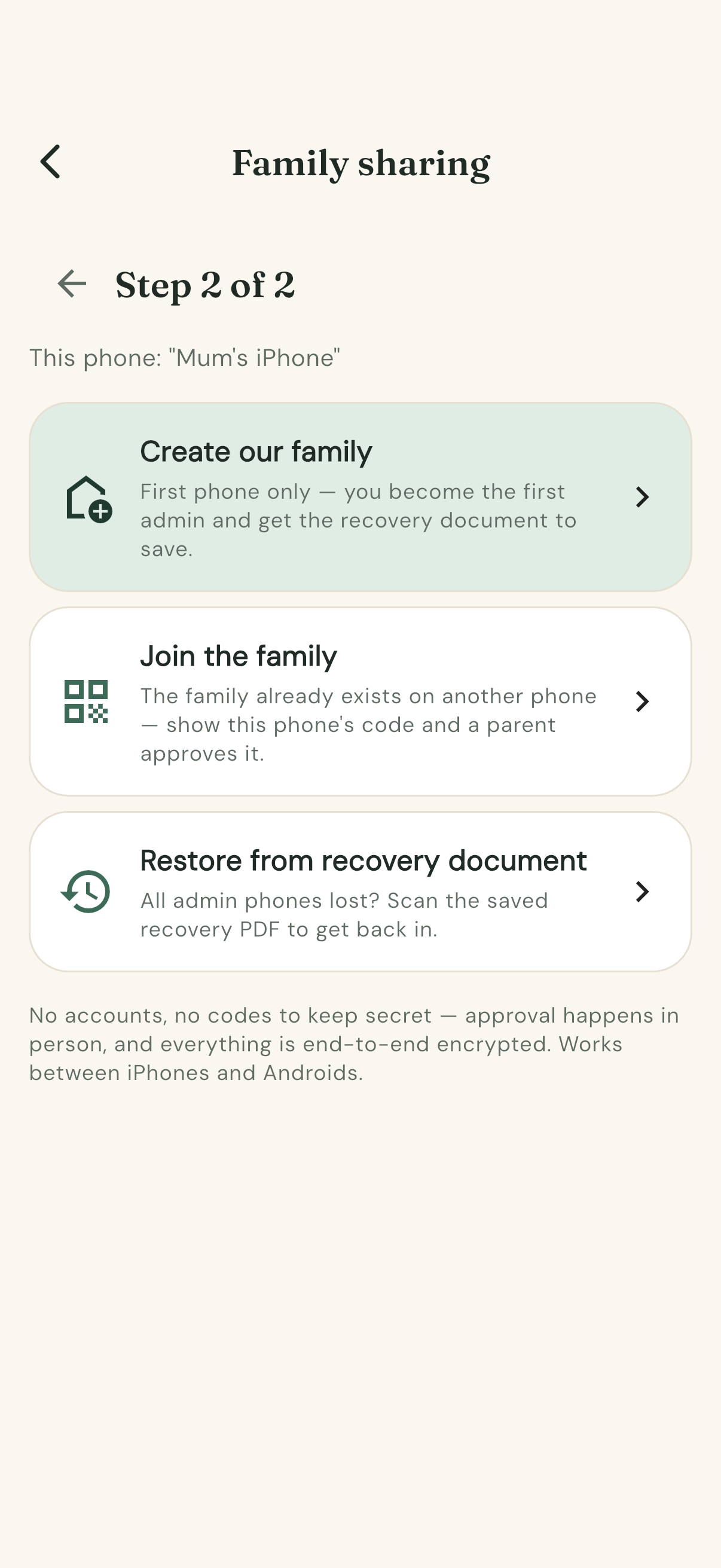
Step 2 of 2 offers three cards. Pick the one that matches your situation:
| Card | Pick it when |
|---|---|
| Create our family | You're the first phone. Nobody has set Joey up yet. |
| Join the family | Someone else already created it, and a parent is next to you. |
| Restore from recovery document | Every parent's phone has been lost, and you have the saved recovery document. |
Set-up mode
If you chose Set up baby and family first on the welcome screen, More opens with a Set up card at the top: 1 Baby profile and 2 Family sharing, numbered so you can see what's left. Tap 2 Family sharing and you're at "name this phone" above. A step's number turns into an outline once it's done, and the card disappears when both are — or sooner, if you tap Skip for now or anything below the card. Joining a family someone else already created? The Join them instead link in the card's intro takes you straight to your join code.
Create the family (one phone, once)
Tap Create our family.
The phone makes the family's encryption key, right there on the phone, and signs itself in as the first admin — a parent, who can approve and remove other phones.
Then Joey asks you to save the recovery document and won't take no for an answer: the share sheet comes back until the file is actually saved somewhere. Save it to Files, AirDrop it, or email it to yourself. It takes ten seconds and it matters — see The recovery document below.
That's the family created. Now add the other phones.
Add another phone (two scans, both directions)
Nothing secret is ever shown or sent. The new phone shows who it is; a parent approves exactly that phone; the parent's phone hands back a welcome that only works on it.
Have both phones in the same room.
On the new phone
- More → Family sharing → name the phone → Join the family. (A phone that has never run Joey can skip a step: tap Someone already using Joey? on the welcome screen, and the name step reads "Name this phone, then show your code" — Continue opens the code straight away.)
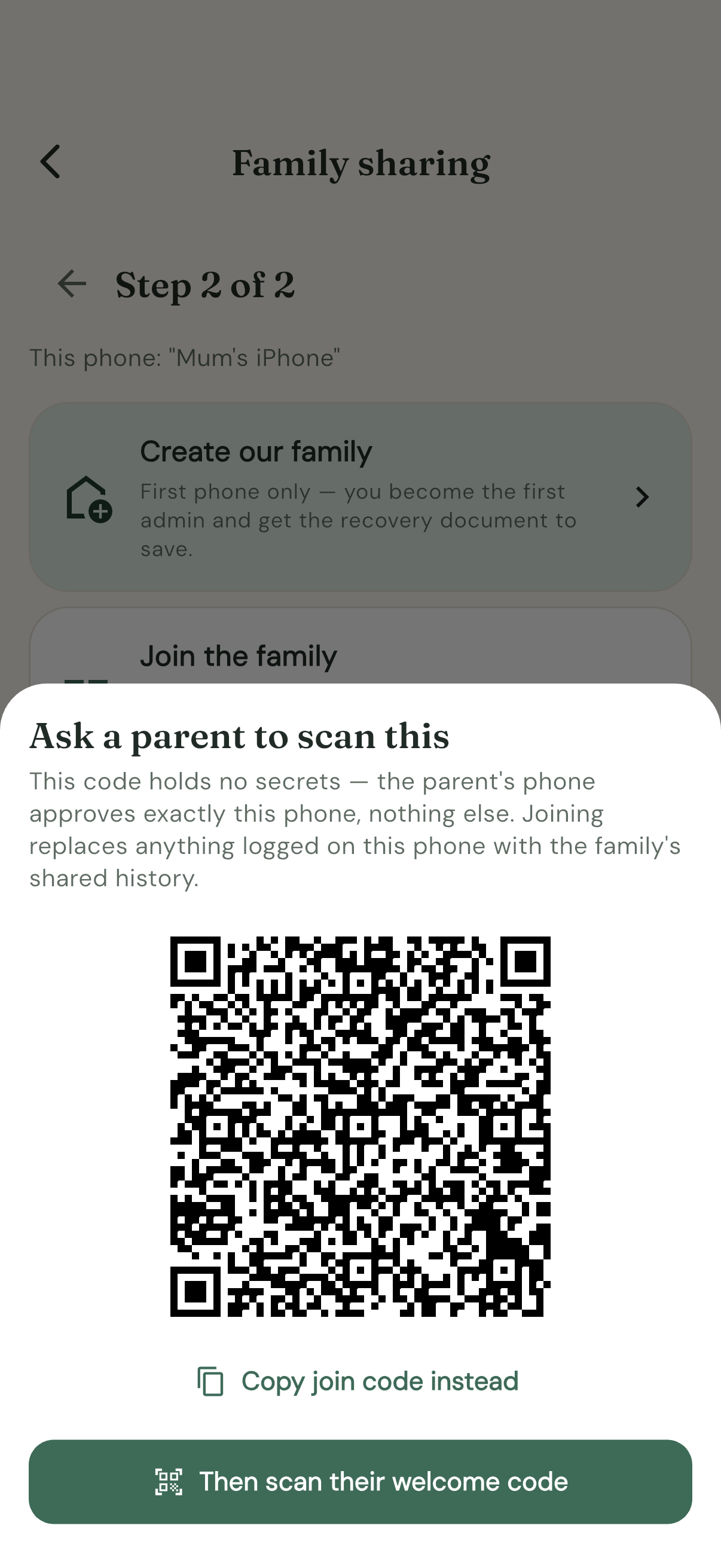
- A code appears, under the heading "Ask a parent to scan this". Hold it up.
On a parent's phone
- More → Family sharing → Add a device, and scan the code.
- Check the name that comes up, then choose:
- Add as admin — another parent. Can approve, remove and manage phones.
- Add as member — a helper, like a grandparent or a babysitter. Can log and view everything, but can't add or remove phones.
- A welcome code appears on the parent's phone, headed "Now let them scan this". Hold it up.
Back on the new phone
- Tap Then scan their welcome code and scan it.
Done. The devices list appears and the family's history fills in within seconds.
Joining replaces what was on that phone. Anything logged on the new phone before it joined makes way for the family's shared history. Join first, then log. (A phone rejoining the family it was already in keeps its entries.)
Not in the same room? Both codes can be copied as text instead — there's a Copy join code instead and a Copy welcome code instead button — and sent by message. The welcome code is made for one specific phone; to anyone else it's gibberish.
When every parent's phone is lost
This is what the recovery document is for. On a new phone: More → Family sharing → name the phone → Restore from recovery document → scan the QR code on the saved document. That phone becomes an admin and can approve everyone else again.
The recovery document
When the family is created, Joey makes a one-page PDF on the phone and asks you to save it.
- Why it exists. Joey's encryption means nobody can reset your access — not Rob, not the server, nobody. If every parent's phone were lost at once, this page is the only way back into the family's shared history. (Each phone still has its own copy of everything on it.)
- Where to keep it. Print it and put it with the passports, or store it in a password manager. Emailing it to yourself works too — just know your email provider then holds a copy.
- Treat it like a password. Anyone holding the page can read and write the family's data and add phones.
- Getting another copy. The phone that created the family (or one restored from the document) can make a fresh one any time: Family sharing → Export recovery document.
Once you're connected
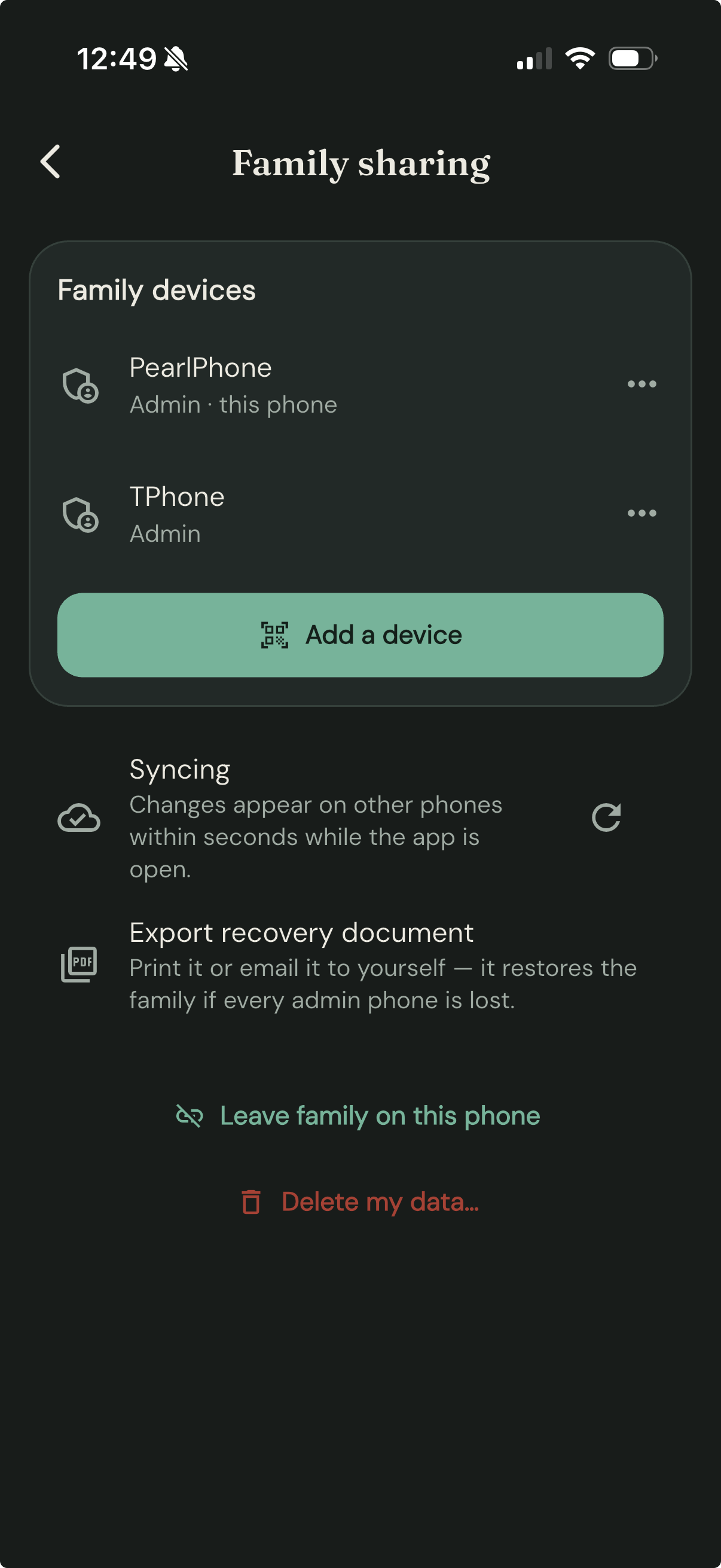
The Family sharing screen changes to show the family's phones, a Syncing row, Export recovery document, Leave family on this phone and Delete my data….
Changes appear on the other phones within seconds while the app is open. A phone that's been in a pocket all day catches up as soon as Joey is opened.
Next: Manage family devices — names, roles, removing a phone, and leaving. If a phone isn't keeping up, see Something looks wrong.
How to manage family devices
Seeing who has access, renaming phones, changing roles, removing a phone, and taking your own phone out.
Everything here lives in More → Family sharing.
See who has access
The Family devices card at the top lists every phone in the family, each with its name and, underneath, Admin or Member — and "this phone" on the one you're holding.
Tap a phone to see more, including its key fingerprint: a short string of letters and numbers unique to that phone. If you're ever unsure a phone in the list is the one you think it is, compare the fingerprint with the one shown on that phone itself.
If the card says "Waiting for the device list to sync…", give it a moment with the app open.
Admin or member
- Admin — a parent. Can add phones, remove phones, rename them and change roles.
- Member — a helper, like a grandparent or a babysitter. Can log and view everything, but can't add or remove phones.
Joey won't let you remove or demote the last admin, so the family can't lock itself out by accident. The option is replaced by "Last admin — add another admin first".
Add a phone
Tap Add a device and scan the new phone's code. The full walkthrough, from both sides, is in Set up family sync.
Add a device only appears on admin phones.
Rename a phone, or change its role
Tap the phone in the list, then:
- Rename — type a new name and tap Save.
- Change to admin / Change to member — a confirmation names the phone and says what changes.
Changes appear on every phone.
A phone can't change its own role or remove itself — those happen from another parent's phone. Tapping your own phone in the list says so. To take your own phone out, use Leave family on this phone instead.
Remove a phone
Tap the phone → Remove from family → Remove.
The confirmation tells you what happens: the family's key is replaced, so that phone keeps whatever it already has but can never read anything new. It can't add entries, and it can't touch the family again. On that phone, Family sharing shows "This phone has been removed from the family."
Every remaining phone picks up the new key by itself. A phone that was switched off during the removal catches up next time it's opened.
Removing a phone is the right move when one is being sold, traded in, or lost.
Mum gets a new phone
Set the new phone up the normal way: it shows its join code, and her old phone — or the other parent's — scans and approves it as an admin. Then remove the old phone from the list.
Take this phone out of the family
Leave family on this phone → Leave.
The phone stops syncing. Everything logged on it stays on it. Nobody else loses anything. If it joins the same family again later, it keeps what was logged on it and brings back the family's history.
Delete instead
Delete my data… at the bottom opens the same screen as More → Delete my data: save a copy first, then wipe this phone, or — from a parent's phone — delete the family everywhere. See How to delete your data.
The recovery document
Export recovery document makes a fresh copy of the one-page PDF that gets you back in if every parent's phone is lost at once. What it is and where to keep it: Set up family sync.
What the server can see
Nothing readable. Not the entries, not the phone names, not the roles, not even the list of phones — it's all encrypted before it leaves your phone. More on that in Privacy and sync.
How to log a breastfeed
Starting, switching and stopping a breastfeed — in the app, from a widget, or from the lock screen.
Start the feed
- On the Home tab, find the Feeding card.
- Tap Left or Right for the side bub is starting on. The timer starts immediately and a "Breastfeeding — Left" (or "— Right") banner appears at the top of the screen, showing elapsed time in minutes ("just started", then "12m", "1h 5m").
Which side does Joey suggest?
The Feeding card highlights one side as the filled (solid-coloured) button and shows a caption like "Suggested next: left side". The suggestion is simply the opposite of whichever side the last breastfeed finished on (bottles don't count) — if the last breastfeed ended on the right, Joey suggests left. You can always tap the other button; it's a suggestion, not a rule.
You can also start a feed without opening the app:
- Feeding widget or Joey control widget, either platform — tap the Left or Right tile (each is the letter over its word; Left is the filled one).
Switch sides mid-feed
Every switch is kept in the entry, so the journal and Trends know exactly how long bub spent on each breast.
- From the banner (in the app): tap the swap icon (Switch side) on the "Breastfeeding" banner. The banner title updates to the new side.
- From the lock screen: the running feed shows with a stopwatch — a Live Activity on iOS (tap Switch there, or long-press the Dynamic Island to expand it), an ongoing notification on Android (expand it and tap Switch).
- From a home-screen widget: while a feed is running, the Feeding widget shows Switch and Stop tiles — tap Switch. (In Joey control there is a Bottle tile between them.)
You can switch as many times as you like; every switch is recorded.
Move to a bottle mid-feed
If bub comes off the breast and finishes with a bottle:
- Tap the bottle icon (Move to bottle) on the "Breastfeeding" banner — or tap Bottle on the lock screen (the iOS Live Activity or the Android timer notification).
- Joey stops the breastfeed and starts a bottle timer in one tap. You'll enter the mL when the bottle finishes (see How to log a bottle).
Stop the feed
- Tap the stop button (Stop) on the "Breastfeeding" banner, or
- Tap Stop on the lock screen (iOS Live Activity or Android timer notification) or the Feeding widget.
That's it — no further input needed. If you started the feed on one phone, anyone in the family can stop it from theirs, once family sync is set up.
How it looks in the journal
A finished feed appears in the Journal with the time spent on each breast, for example "Breastfed 12m · L 5m → R 7m" — started left for 5 minutes, finished right for 7. A feed that switched back and forth shows ⇄ ("L 8m ⇄ R 4m"); a feed that stayed on one side just shows "Left" or "Right". The Feeding card on Home shows the shorthand ("L→R"). Use the Feeds filter chip to see feeds only.
Logged a feed wrongly? Tap the entry in the Journal to edit its times or side — see How to edit or backdate entries. Swipe left to delete instead.
How to log a bottle
Starting a bottle, entering the mL at the end, and fixing one you stopped from a widget.
Start the bottle
- On the Home tab, find the Feeding card.
- Tap Bottle. A "Bottle feed" banner appears at the top of the screen with a running timer (minutes only — "just started", then "10m").
You can also start a bottle from the Feeding widget or the Joey control widget on either platform — the Bottle tile (a bottle glyph over the word), shown while "Show bottle button" is enabled in the widget's options. If a breastfeed is already running, use Move to bottle on the breastfeeding banner instead — it stops the breastfeed and starts the bottle in one tap.
Finish and enter the amount
- Tap the stop button on the "Bottle feed" banner.
- A sheet asks "How much did bub take?" — type the amount in mL, choose Formula or Expressed milk, and tap Finish feed.
- If you don't know or don't care about the amount, tap Finish without amount instead (the Formula/Expressed choice still saves).
Why does Joey ask for the volume at the end?
Because that's when you actually know it. You don't know how much bub will take when you make the bottle up — you know when it comes back. So the bottle is a timer like everything else: start it when the feed starts, and enter the mL that actually went down when it's over. The journal entry then shows both the duration and the amount, e.g. "Bottle 15m · 90 mL".
Stopping from a widget or the lock screen
From the lock screen: the iOS Live Activity and Dynamic Island, and the Android timer notification, have an Add mL button beside Stop. Add mL ends the feed when you tap it, then opens Joey on "How much did bub take?". Enter the amount and tap Save.
From a home-screen widget, or with Stop: the feed is saved without a volume, because a widget can't show a keyboard.
Add it afterwards: open the Journal, tap the bottle entry, enter the mL (and Formula/Expressed if needed), and swipe the sheet down — it saves as it closes. The daily total updates immediately. See How to edit or backdate entries.
Log a bottle that already happened
Log it now and move it afterwards:
- Tap Bottle, then stop it straight away.
- Enter the amount.
- Tap the new entry in the Journal and set the real Started and Ended times — see How to edit or backdate entries.
Where it shows up
- Journal: "Bottle 15m · 90 mL · formula" (or "· expressed") under the Feeds filter chip.
- Home → Today summary: bottle mL rolls into the unified Feeding line, e.g. "Fed 6× — 1h 40m at breast + 120 mL bottle".
- Trends: bottles appear in the pattern chart and, in a day's focused sheet, as translucent segments on the 24-hour feeding strip.
How to log sleep and nappies
Two taps for a sleep. One tap for a nappy.
Sleep: one button, two taps
Sleep in Joey is a toggle — tap when bub goes down, tap when bub wakes. Joey works out the duration.
When bub falls asleep
- On the Home tab, find the Sleep card.
- Tap Fell asleep. The card changes to "asleep now" and an "Asleep" banner appears at the top of the screen with the running time in minutes.
When bub wakes
- Tap the sun button (Wake up) on the "Asleep" banner.
- The sleep is saved to the Journal as e.g. "Slept 1h 40m", and the Sleep card switches to showing how long bub has been awake, e.g. "awake 45m". That awake-since readout counts up from the end of the last sleep — handy for judging when the next nap is due.
You don't need the app open for either tap: the Sleep widget (iOS and Android) carries a single tile, Fell asleep while bub is awake and Wake up while they sleep, and a running sleep also shows on the lock screen with a Wake up button — a Live Activity on iOS, a silent ongoing notification on Android. Starting the sleep on one phone and ending it on another also works, once family sync is set up.
Forgot to tap?
Forgot to tap Wake up and the sleep ran long? Tap the entry in the Journal and pull its Ended time back — see How to edit or backdate entries. Best habit is still to make the tap part of picking bub up.
Nappies: one tap, done
Nappies aren't timers — a single tap logs the change instantly.
- On the Home tab, find the Nappy card. It shows how long since the last change.
- Tap Wee, Poo or Mixed (mixed = both in the one nappy). That's it — no confirmation step.
The entry lands in the Journal immediately ("Nappy · wee", "Nappy · poo", or "Nappy · wee + poo") and the day's tallies appear in the Today summary ("4 nappies · 3 wee · 2 poo" — a mixed nappy is one nappy) and on the Trends tab. The same three are tiles on the Nappy widget on iOS and Android — Wee, Poo, Mixed, each a glyph over its word — so you can log a change from the home screen mid-wrangle.
Tapped the wrong button? Swipe left on the entry in the Journal and confirm Delete, then tap the right one.
How to pump
For the pumping parent: start, switch sides, stop, and where the totals turn up.
Start a pump
- On the Home tab, look at the bottom row of the Feeding card. It shows "Last pump 2h 15m ago" (or just "Pump" if there's none yet) with Start pump on the right.
- Tap Start pump and choose Left, Right or Both from the menu — pick Both if you're double pumping.
- A "Pumping — Left" (or "— Right" / "— Both") banner appears at the top of the screen with the running time, and the Feeding card's pump row changes to "Pumping now".
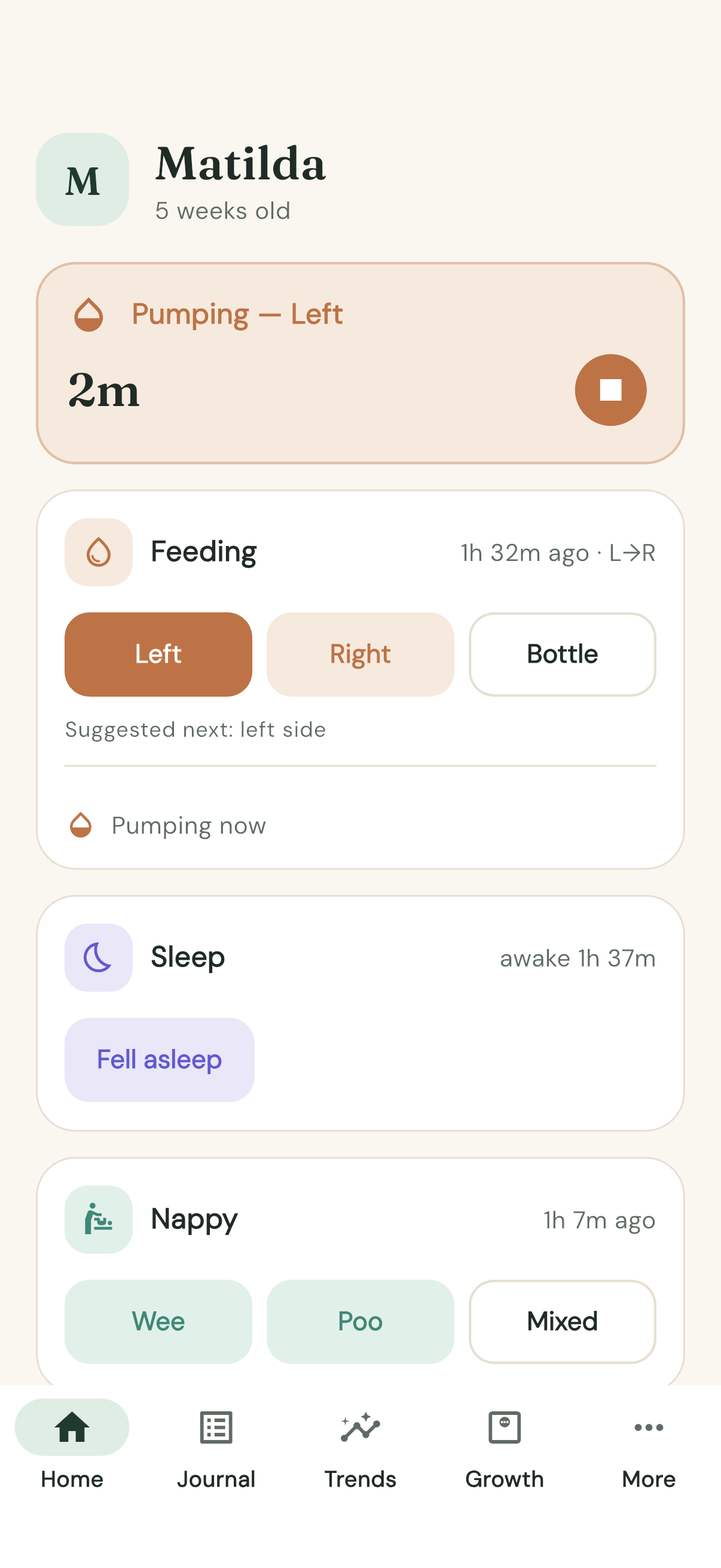
You can also start without opening the app: the Pump widget (iOS and Android) has Left, Right and Both tiles, and the Joey control widget (also both platforms) has a Pumping panel with the same controls.
Switch sides while the pump is running
Switched the pump to the other breast? Tell Joey:
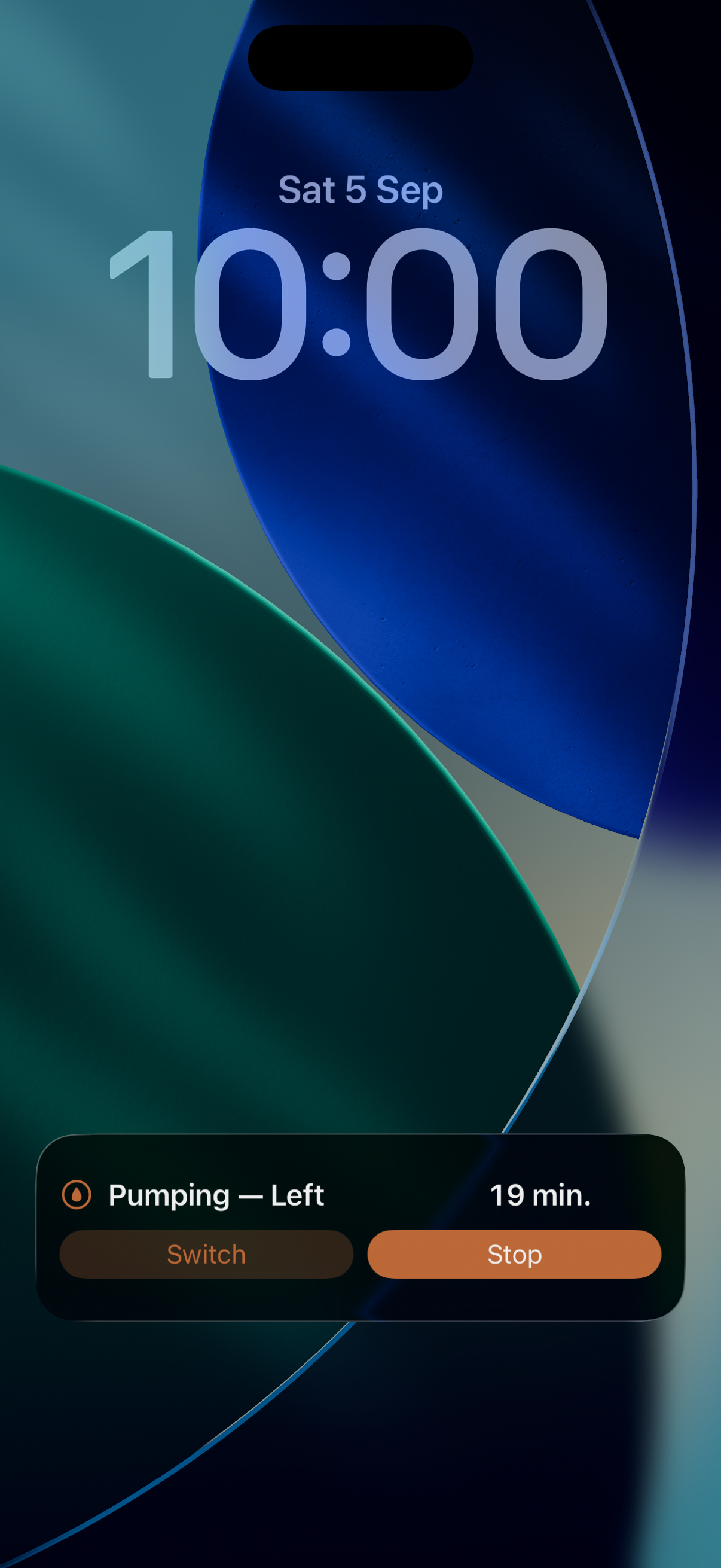
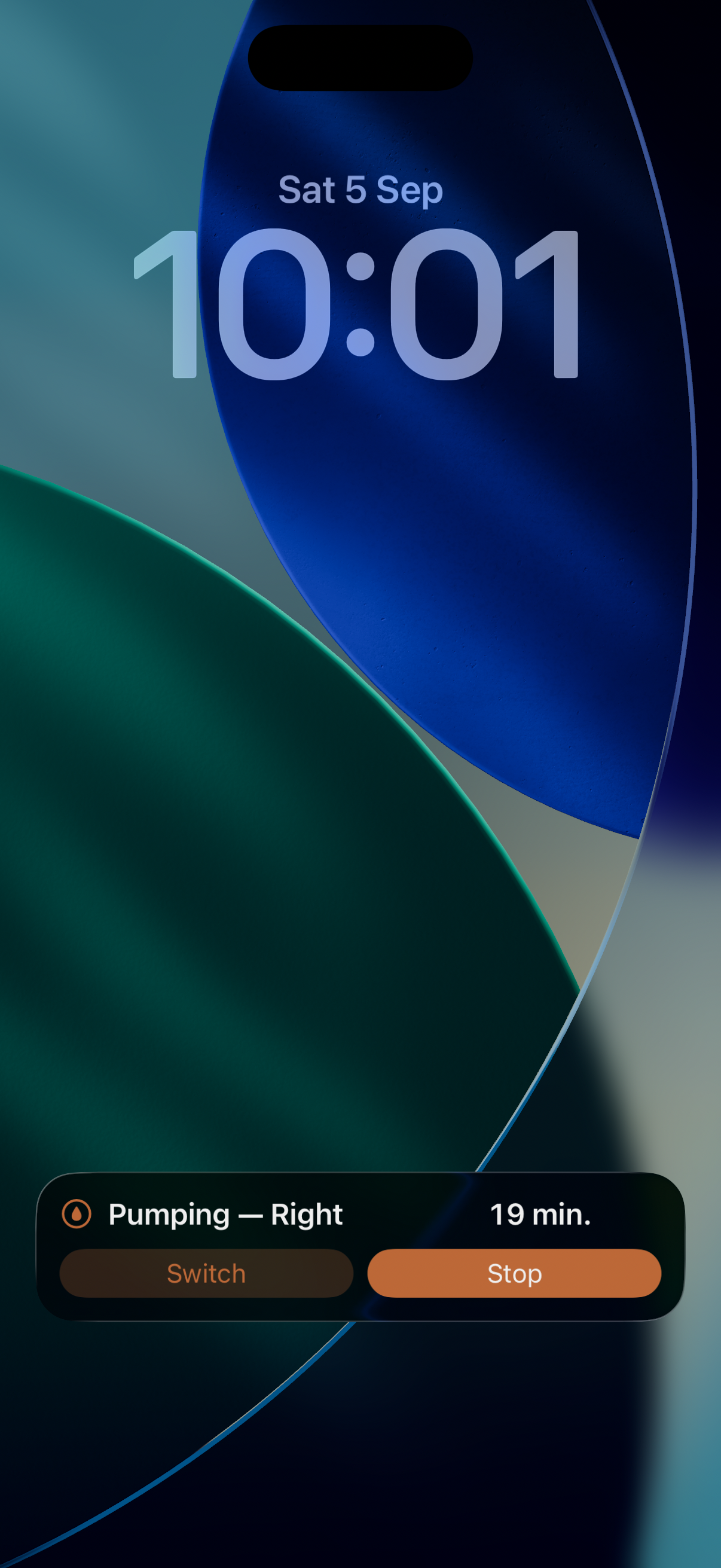
- Lock screen: the running pump shows as an iOS Live Activity or an Android ongoing notification. Tap the switch button there (⇆ on iPhone, where it's also on the expanded Dynamic Island; Switch on Android) — the title flips, e.g. "Pumping — Left" becomes "Pumping — Right".
- Joey control widget (iOS and Android): the Pumping panel has a Stop tile — to switch sides, use the lock screen or the app.
Note: the switch button only appears for a Left or Right pump — a Both pump has no side to switch, so the button is hidden.
Stop
Tap the stop button (Stop) on the "Pumping" banner in the app, or Stop on the lock screen (iOS Live Activity or Android timer notification), the Pump widget, or the Joey control widget. No further input is needed.
Where pump totals appear
- Home → Today summary: its own line, e.g. "Pumped 3× — 55m" (count and total time).
- Home → Feeding card: the pump row shows "Last pump 2h 15m ago" between sessions.
- Journal: entries like "Pumped 20m · left" under the Pumping filter chip.
- Trends → Daily totals: pump minutes are one of the stacked segments in the FEEDING (MINUTES) bars, alongside Left and Right breast minutes; tapping a bar opens the focused day sheet, where pumping gets its own lane on the 24-hour feeding strip.
- Trends → tap a day in the pattern chart: the whole-day breakdown sheet includes your pump totals.
How to edit or backdate a journal entry
Every entry can be corrected after the fact — times, sides, amounts, text. Edits sync to the other phones like any other change.
Edit any entry
- Open the Journal tab.
- Tap the entry you want to fix. An edit sheet opens pre-filled with the entry's details.
- Change what you need, then swipe the sheet down. There is no Save button: a time is saved the moment you tap Save in the time picker, a choice (side, formula or expressed, wee and poo, dose unit) is saved as you tap it, and anything typed (mL, dose, note, temperature, measurements) is saved when you close the sheet.
What each entry type lets you edit:
| Entry | Editable fields |
|---|---|
| Breastfeed | Started, Ended, side (Left/Right) |
| Bottle | Started, Ended, amount (mL), Formula / Expressed milk |
| Pump | Started, Ended, side (Left/Right/Both), amount (mL) |
| Sleep | Started, Ended |
| Nappy | When, wee, poo |
| Medication | When, name, dose + unit (mL/mg/drops) |
| Temperature | When, °C |
| Note / Milestone | When, text |
| Growth | When, weight, length, head circumference |
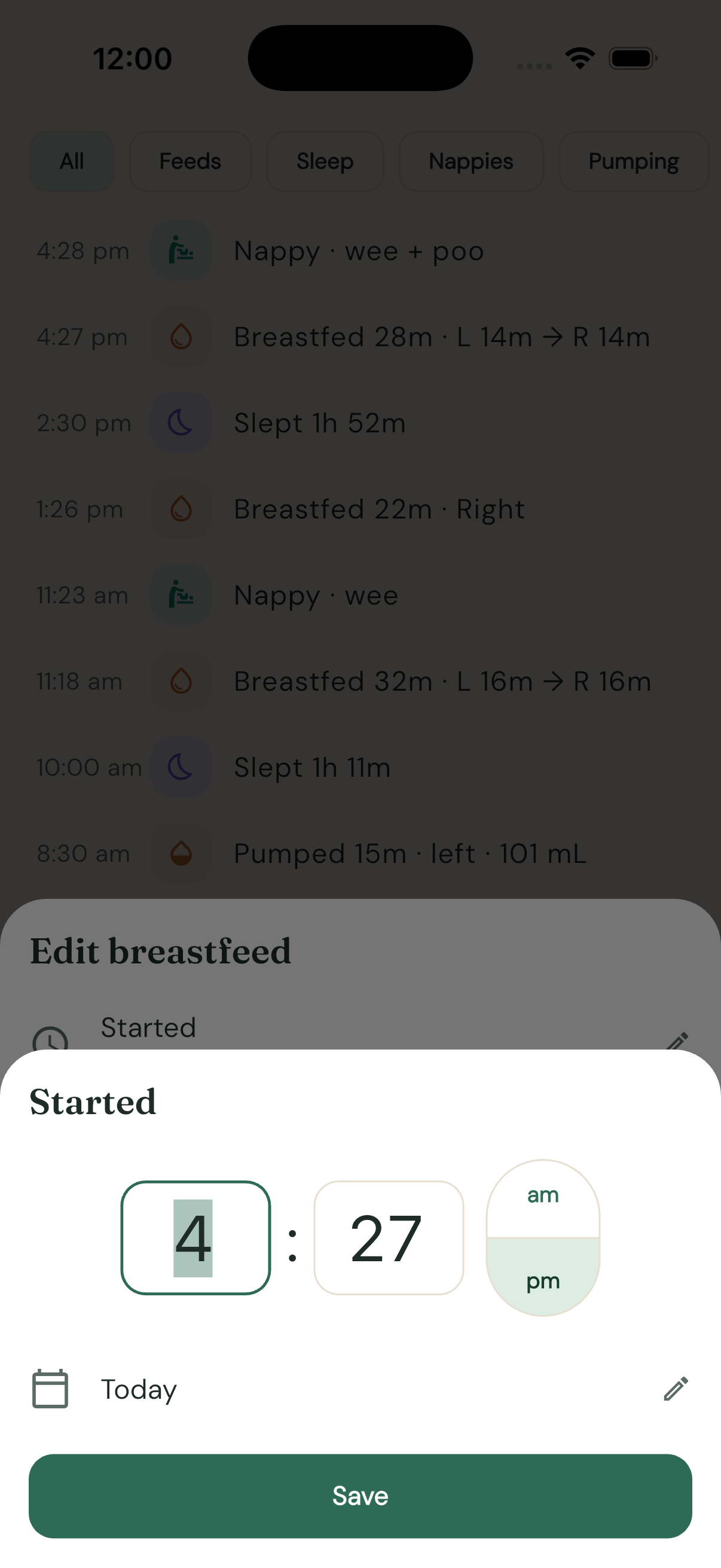
Tapping a time row (the clock icon) opens straight into time entry — it's the time you're correcting nine times out of ten, not the date. Hour and minute are typed on the numeric keypad in your phone's own 12/24-hour format; tapping a field selects its digits so you just type over them, and entry jumps from hours to minutes by itself. The date sits underneath as its own row ("Today"/"Yesterday"/the date) — tap it only when the entry belongs to a different day. Save writes the time straight away (the picker reads Done in the log-a-thing sheets, where the entry doesn't exist until you save the sheet). An end time before the start time is rejected with a message.
Resume a timer you stopped by mistake
Stopped a sleep (or feed, pump, bottle) that was actually still going? Don't fiddle with the end time — tap the entry in the Journal and tap Resume — still going. The entry loses its end time and runs again everywhere: banners, widgets and the Live Activity come back. Resume refuses (with a message) if another timer of the same type is already running.
Fix a bottle stopped from a widget or the lock screen
Stopping a bottle with Stop on a widget or the lock screen saves the entry without mL. (Add mL on the lock screen asks for it straight away.) To complete it: Journal → tap the bottle → enter the amount (and Formula/Expressed) → swipe the sheet down. The daily bottle total updates immediately.
End a stuck "running" entry
If an entry shows the running ▶ icon but the timer is long over — both phones started one before they were sharing, say — tap it and set an Ended time. Once the phones are sharing, Joey sorts this out by itself.
Log something you forgot (backdating)
Medication, temperature, note and milestone, and growth sheets each have a When row that starts at now. Tap it to pick the real time before saving, earlier days included.
For a feed, sleep, bottle or pump that already happened: log it, then tap the new entry and move its Started and Ended times.
Quick-logged nappies (the one-tap Wee/Poo/Mixed buttons) are stamped at tap time; if you're logging a change you did an hour ago, tap the entry in the Journal afterwards and move its time.
Delete an entry
Swipe the entry left in the Journal and confirm. Deletes sync too.
Changed your mind? A "Deleted … · Undo" bar sits at the bottom for five seconds. After that, shake the phone — within a minute of the delete Joey asks "Undo delete?". Undo brings the entry back exactly as it was (a running timer comes back running) and syncs like any edit. It refuses only if the deleted entry was a running timer and another of the same type has started since; stop that one first.
How to comment on a journal entry
Leave a remark on any entry — "took ages", "very green", "tried the slower teat" — and see which phone said it and when. Comments sync to the other phones like everything else.
Add a comment
- Open the Journal tab and tap the entry. Its edit sheet opens.
- Tap Comments at the bottom of the sheet ("None yet — add one").
- Type in the box and tap Post. The comment appears in the thread with your phone's name and the time.
Comments work on every kind of entry, notes and milestones included.
Read a thread
Once an entry has comments, a small speech bubble with the count sits at the end of its journal row (and on the rows in the Trends day drill-down).
- Tap the bubble to open the thread.
- Tapping anywhere else on the row still opens the edit sheet, and swiping left still deletes the entry, exactly as before.
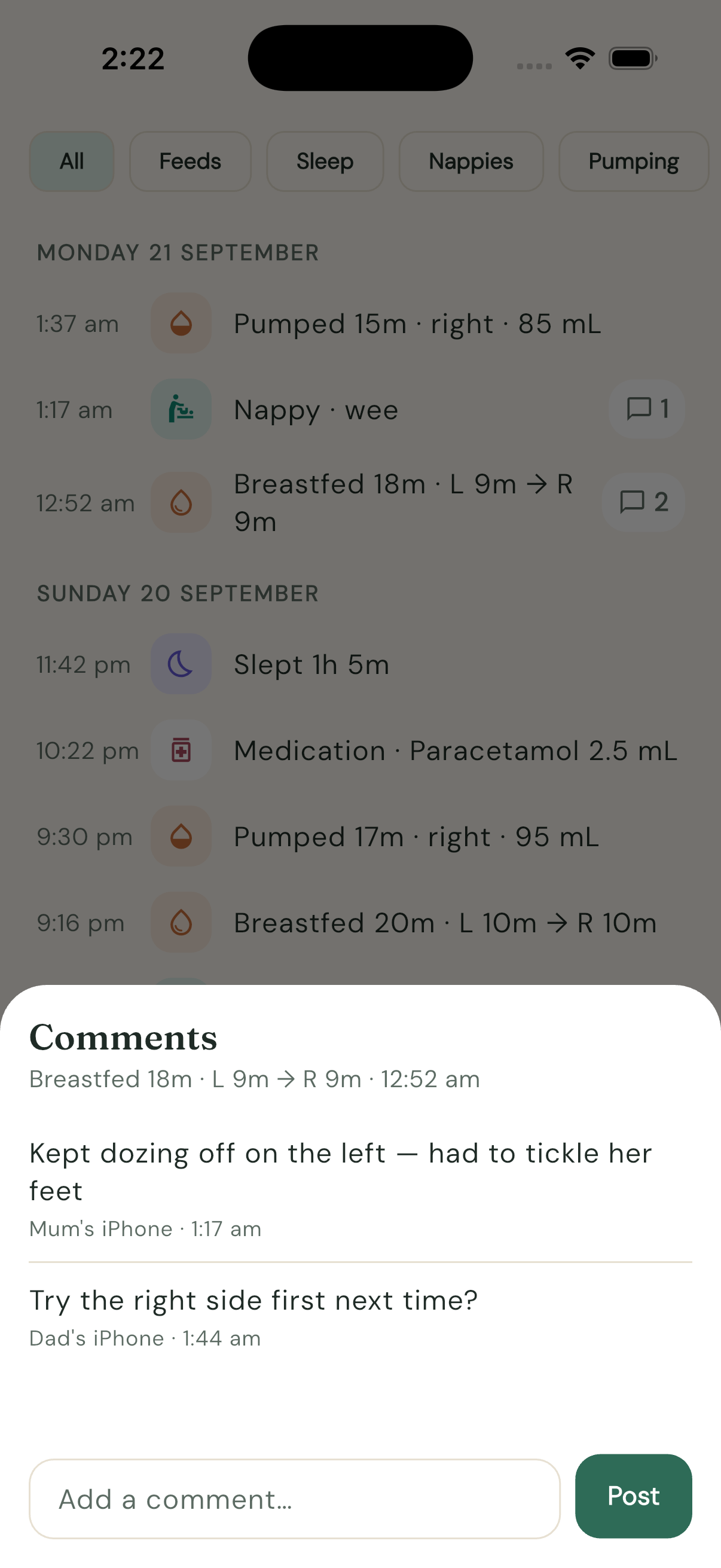
Each comment shows which phone posted it — the name that phone was given in Family sharing (for example "Mum's iPhone"; renaming the phone renames its past comments too) — and when, in hours and minutes: "2:34 pm" for today, "Yesterday 2:34 pm", or "Tue 15 Sep, 2:34 pm".
Remove a comment
Swipe left on one of your own comments in the thread and confirm Remove. You can't remove the other phone's comments, and there is no editing — remove and post again.
Good to know
- A comment is separate from the entry, so editing the entry (times, amounts, side) never touches its comments, and a comment posted on one phone can't be wiped out by an edit made on the other at the same time.
- Deleting an entry hides its comments; Undo brings them back with it.
- Comments are encrypted like everything else in Joey. The server that carries them between phones can't read the text or tell who wrote it.
- If another phone in the family is running an older Joey, a comment shows up there as a plain note. Updating that phone puts it right.
How to log health and milestones
For a sick bub at 3 am, or a first smile before it is forgotten.
The More tab holds everything that isn't a feed, sleep or nappy: medications, temperatures, and notes & milestones.
Log a medication
- Open the More tab and find the Health section at the top.
- Tap Medication.
- In the Log medication sheet, enter the name — or tap a chip above the field. Paracetamol and Ibuprofen are always there as one-tap chips, and medications you've logged before appear first, so a repeat dose is one tap.
- Enter the dose amount — the "Dose" field brings up the numeric keypad (decimals allowed, e.g. "2.5") — and pick the unit underneath: mL, mg or drops. The dose can be left empty if you only want to record that something was given.
- Tap Save.
Log a temperature
- In the Health section, tap Temp.
- Enter the reading in the Temperature (°C) field (e.g. 37.2 — a comma as the decimal separator is fine too). Joey only accepts plausible values between 30 and 45 °C.
- Tap Save.
Read the sick-bub timeline
Medications and temperatures share one merged timeline under the Health buttons, newest first — entries like "Paracetamol 2.5 mL · 4h 56m ago" or "38.1°C · 1h 12m ago". The point, as the empty state puts it: "When bub is sick, log temperatures and doses here so you both always know what was given and when."
- The "ago" times answer the 3 am question directly: is it too soon for the next dose?
- The section shows the 8 most recent entries.
- Once family sharing is set up, both parents see the same timeline — no more "did you already give her something?"
Add a note or milestone
- Below Health, find Notes & milestones and tap Add.
- In the New note sheet, write what happened in the "What happened?" field.
- For a big moment, flick on the Milestone 🎉 switch ("First smile, first word…"). Milestones get a celebration icon in the list; plain notes get a sticky-note icon.
- Tap Save. Notes are timestamped and listed newest first, e.g. "3 Sep, 2:15 pm".
Tips
- Health entries and notes also appear in the Journal under the Other filter chip.
- Made a mistake? Tap the entry in the Journal to edit the name, dose, temperature, text or time — see How to edit or backdate entries. The medication and temperature sheets also have a When row for doses you're logging late.
How to add and configure widgets
Log feeds, sleeps and nappies from the home screen without opening Joey.
Joey's widgets are buttons, not pictures. Tapping one logs the entry or starts the timer there and then. On an iPhone the widget flips to its new state almost instantly while Joey finishes the job in the background; on Android expect a second or three before it catches up.
Add a widget on an iPhone
- Long-press an empty spot on your home screen until the icons jiggle.
- Tap Edit in the top corner, then Add Widget.
- Search for Joey and pick a widget from the list.
- Swipe to choose a size, where more than one is offered, then tap Add Widget.
- Drag it where you want it and tap Done.
While the icons are still jiggling you can add several at once — a Feeding widget next to a Recent activity widget is a handy pairing.
Add a widget on an Android phone
- Long-press an empty spot on your home screen.
- Tap Widgets.
- Scroll to Joey and long-press the widget you want.
- Drag it onto the home screen.
The six widgets
The same six exist on both phones.
| Widget | Sizes | What it shows and does |
|---|---|---|
| Feeding | Small, medium, lock screen | Idle: Left, Right and Bottle, plus the last feed ("L→R · 2h 5m ago"). While breastfeeding: the elapsed time with Switch and Stop. While bottle feeding: the time with Stop. |
| Sleep | Small, lock screen | Fell asleep while bub is awake (with "woke 1h 10m ago"); Wake up and the elapsed time while asleep. |
| Nappy | Small, medium | Wee, Poo and Mixed, plus when the last nappy was changed. |
| Pump | Small, medium | Idle: Left, Right and Both, plus the last pump. Running: the elapsed time and Stop. |
| Recent activity | Small, medium | The last few feeds, sleeps and nappies — a badge, what happened, and the time. Four rows in the medium size, three in the small. Nothing to tap. |
| Joey control | Medium (4×2 on Android) | Everything in one: a rail of activities showing when each last happened, and a panel of controls. See How to use the control widget. |
Every button is a tile: a glyph over its word, filled in the activity's colour for the main action. Nothing is icon-only, so nothing has to be guessed at.
All widget times show minutes only — "just started", "27m", "1h 05m" — and tick over once a minute. No seconds anywhere.
The Feeding and Sleep widgets also come in a flat lock-screen size on iPhone, showing the state at a glance ("Feeding L · 12m", "woke 1h 20m ago").
"Fed 2h ago", or "fed at 3:12 pm"?
More → Widget times decides how every widget describes the last feed, sleep, nappy or pump: Time since ("fed 2h 5m ago") or Clock time ("fed at 3:12 pm"). It applies to every widget on every phone in the family's hands. Running timers always show their elapsed time either way.
Android starts on clock time, and there's a good reason. An Android widget is a still picture the phone redraws now and then, not continuously — so "fed 12m ago" could sit there saying 12m for half an hour. "Fed at 3:04 pm" is true no matter how long ago it was drawn. iPhone widgets can prepare a frame for every minute ahead of time, so they start on "ago" times. Change either one whenever you like.
Widgets sit on Joey's cream paper in light mode and charcoal in dark mode, following your phone.
Widget options
Two widgets have settings. On an iPhone, long-press the widget and choose Edit Widget. On Android, long-press the widget and tap the pencil.
- Feeding — Show bottle button: turn it off if you never bottle feed and want just Left and Right. (A Show pumping toggle appears in the same list but does nothing here — it belongs to Joey control, which shares the list.)
- Joey control — Show pumping: turn it off to drop the Pump tile from the rail. It has Show bottle button too, for its feeding panel.
Settings are per widget, so two copies of the same widget can be set up differently.
Swapping a Joey control widget for the medium one
Joey control is a medium widget. If you have an older, taller one on an iPhone home screen, iOS can't resize a widget that's already placed — long-press it, choose Remove Widget, and add Joey control again at the medium size. On Android just long-press it and drag its handles in.
How to use the control widget
One home-screen widget that covers feeding, nappies, sleep and pumping.
Joey control is the medium widget (4×2 on Android) — a one-stop panel, so you don't need four separate widgets. If you have room for a medium widget, this is the one to add. How to add and configure widgets covers putting it there.
The layout
- Left rail — one tile per activity: Feeding, Nappy, Sleep and Pump. Each tile shows its glyph, its name, and the time underneath: now while a feed is running, asleep while they are asleep, pumping while pumping, otherwise when it last happened ("2h 5m ago", or "at 3:04 pm" on Android). The selected tile fills with its activity colour.
- Panel — the controls for whichever activity is selected in the rail.
Use it
- Tap an activity in the left rail. The tile fills with its colour and the panel switches to that activity's controls.
- Tap a tile in the panel to log or start something (every one is a glyph over its word — nothing to decode):
- Feeding — Left, Right or Bottle to start a feed; while a breastfeed is running the panel shows the elapsed time with Switch, Bottle (move to a bottle) and Stop. A running bottle shows Stop alone.
- Nappy — Wee, Poo or Mixed logs the nappy instantly.
- Sleep — Fell asleep, or Wake up while a sleep is running.
- Pump — Left, Right or Both to start; Stop while pumping.
Picking an activity in the rail is instant on both phones. Action buttons look instant on an iPhone and take a second or three on Android, while Joey records the entry in the background.
Your selection is remembered
The widget remembers which activity you last selected, even overnight and across widget refreshes. If you mostly use it for nappies, leave Nappy selected and it'll be waiting on the nappy panel next time you look.
Hide what you don't use
Long-press the widget and choose Edit Widget (iOS) or tap the edit pencil (Android):
- Show pumping — turn it off to remove the Pump tile from the rail. (If Pump was selected when you hide it, the widget falls back to the Feeding panel.)
- Show bottle button — turn it off to drop the Bottle tile from the feeding panel.
On Android the rail shows clock times under each activity ("at 3:04 pm") rather than "ago" times. Why, and how to change it, is in How to add and configure widgets.
How to use the lock screen and Dynamic Island
See and control a running timer without unlocking the phone.
Whenever a Joey timer is running — breastfeed, bottle, pump or sleep — it shows on your lock screen with buttons on it. Glance at the elapsed time, switch sides, or stop the timer mid-cuddle, without unlocking anything.
On an iPhone it's a Live Activity, and it appears in the Dynamic Island too. On Android it's a quiet ongoing notification. Both do the same job.
Say yes the first time
On an iPhone. The first time you start a timer, iOS asks "Allow Live Activities from Joey?" Tap Allow. If you dismissed it, turn it back on in Settings → Joey.
On Android. The first launch asks "Allow Joey to send you notifications?" Tap Allow. If it was declined, Settings → Apps → Joey → Notifications.
Timers still work in the app either way — this only affects the lock screen.
What shows where, on an iPhone
- Lock screen — a card with the title ("Pumping — Left"), a running stopwatch, and the buttons.
- Dynamic Island, compact — the activity's own icon and the running time in the pill: an orange drop for a breastfeed, a bottle for a bottle feed, a pump drop for pumping, a violet moon for sleep. So you can tell a sleeping baby from a feeding one at a glance. No buttons here — Apple doesn't allow them in the small pill.
- Dynamic Island, expanded — press and hold the pill: title, timer, and the same buttons as the lock screen.
The timer on the lock screen runs as a stopwatch, seconds and all. It's the one place Joey shows seconds, and it isn't a choice: a ticking stopwatch is the only kind of live timer a phone will keep updating on a locked screen. Everywhere else, minutes.
The buttons for each timer
| Timer | Buttons |
|---|---|
| Breastfeed | ⇆ (switch side) · Bottle · Stop |
| Bottle | Add mL · Stop |
| Pump (Left or Right) | ⇆ (switch side) · Stop |
| Pump (Both) | Stop — there's no side to switch |
| Sleep | Wake up |
Buttons take a second or three to respond while Joey records the change in the background, then the card updates.
Tapping ⇆ flips the side straight away, and the title follows:
Moving a breastfeed to a bottle
If bub comes off the breast and you top up with a bottle, tap Bottle on the breastfeed card. Joey stops the breastfeed — keeping every side and switch — and starts a bottle timer in one tap. When the bottle's done, tap Stop.
Bottle volumes and the lock screen
A running bottle's card has two buttons:
- Add mL ends the feed at the moment you tap, then opens Joey (after Face ID or your passcode) and asks "How much did bub take?". Type the amount and tap Save. If you tap Skip or don't unlock, the feed is still saved, just without a volume.
- Stop ends the feed without opening Joey. Add the mL later by tapping the entry in the Journal. See How to edit or backdate entries.
The Android timer notification has the same two buttons.
Timers started on the other phone
Once the phones are sharing, the lock screen follows the whole family:
- Start a timer on either phone and the other phone's lock screen lights up within seconds — first as a plain "Joey" stopwatch, then the title fills in ("Asleep", "Breastfeeding — Left") as the details arrive.
- Stop a timer anywhere — a button, a widget, deleting the entry, editing an end time in — and it ends on every phone within seconds.
This works with the receiving phone locked and Joey closed.
A few things worth knowing
- Timers started from a widget show up on the lock screen too.
- Press and hold the Dynamic Island to get the buttons. A short tap always opens the app — iOS reserves that gesture and it can't be changed.
- Buttons only ever act on the timer they're showing. A card left over from an earlier feed can't stop a newer one, and Wake up never starts a sleep — it only ends the one in front of you.
- A card that gets stuck can be swiped sideways off the lock screen, though it should clear itself the next time Joey syncs or is opened.
On Android
A running timer shows as a silent ongoing notification, in the shade and on the lock screen, with the same titles and the same buttons as the table above. The time ticks with Android's own stopwatch, tapping the notification opens Joey, and stopping the timer anywhere makes it disappear.
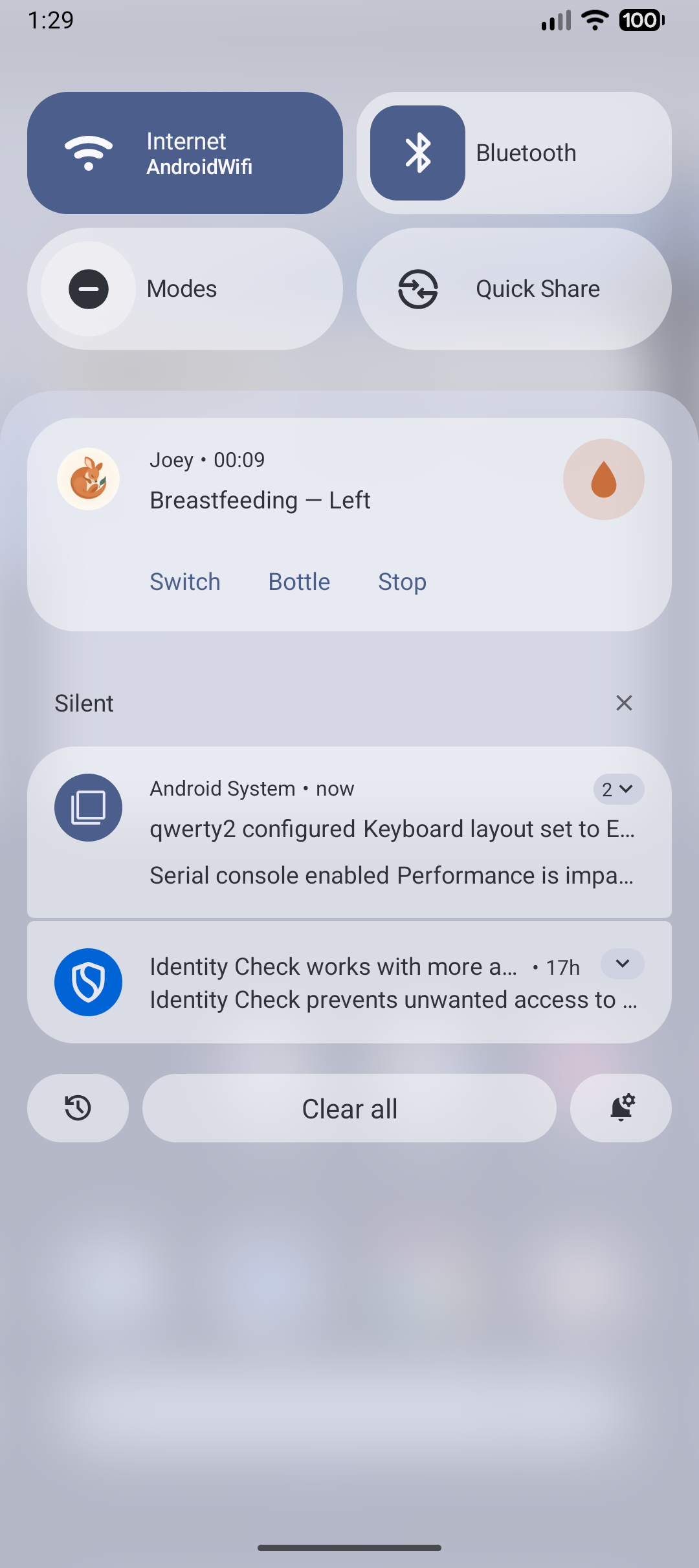
Two differences worth knowing:
- Timers this phone started sit in the Silent section on purpose — a timer you just started yourself should never buzz you. Timers started on another family phone arrive in the main part of the shade instead, still soundless. That's the Android equivalent of the other phone's lock screen lighting up.
- Each timer wears Joey's colours: a violet crescent moon for sleep, the orange drop family for feeds and pumping. On newer Android phones the timer can also appear as a chip in the status bar.
How to track growth and centiles
Logging weigh-ins and check-up measurements, and reading the WHO centile charts.
Joey plots weight, length and head circumference against real WHO growth-standard curves (0–24 months) and tells you the exact centile for every measurement.
Set up centiles first
Centiles need bub's age and sex. Without them, the Growth tab still stores measurements but simply hides the centile chart. (Before anything is logged, the empty Growth tab prompts: "Set date of birth and sex in More → Baby profile to get WHO centiles.")
- Go to More → Baby profile.
- Set the date of birth (tap the date row) and choose Girl or Boy.
- Tap Save. Name is optional; DOB and sex are what centiles need.
Log a measurement
- Open the Growth tab and tap the Measurement button (bottom-right).
- In the Log growth sheet, fill in any or all of Weight (kg), Length (cm) and Head circumference (cm) — one field is enough.
- The When row defaults to now — tap it to backdate the measurement (weigh-ins from earlier days welcome).
- Tap Save. The measurement appears as a card, e.g. "Weight 6.4 kg · 45th centile".
Read the chart
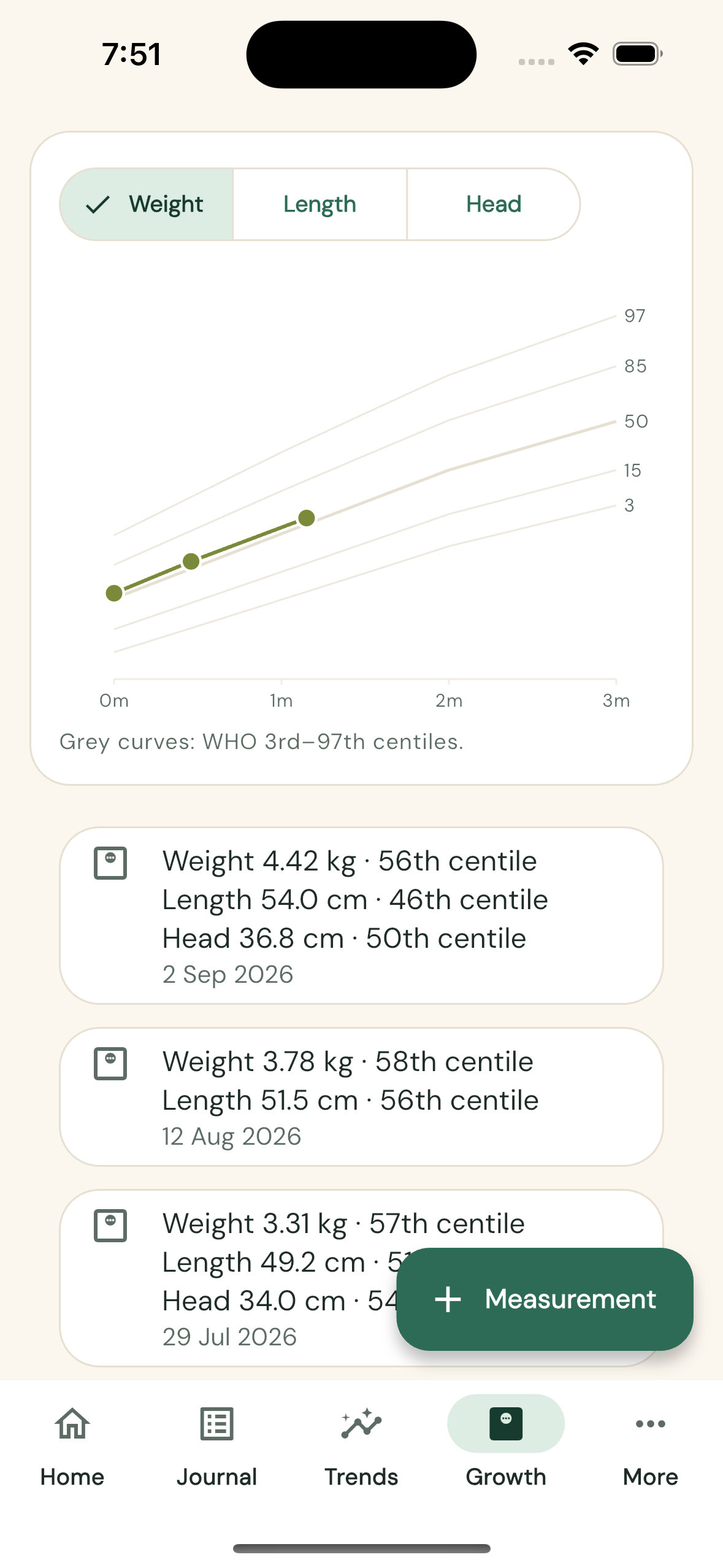
- The chart shows your measurements as points over a fan of five grey curves — as the caption says, "Grey curves: WHO 3rd–97th centiles." The curves are the 3rd, 15th, 50th (middle), 85th and 97th, drawn from the World Health Organization's own growth standards for bub's sex.
- Points tracking roughly parallel to the curves means steady growth along a centile — that's what health nurses look for, more than the absolute number.
- A point on the 50th curve means bub is bang on the median; near the 3rd or 97th just means smaller or larger than most, which is normal if it's consistent.
- Each measurement card below the chart shows the exact centile per measure, so you don't have to eyeball the fan.
Switch measures
- Use the Weight / Length / Head switcher at the top of the chart card.
- The chart redraws with that measure's WHO curves and only the entries that include it. If you've never logged that measure you'll see "No entries for this measure yet."
Notes
- Centiles are calculated for ages 0–24 months; measurements outside that window are stored but shown without a centile.
- The whole family sees the same chart once family sharing is set up.
How to read trends and drill down into a day
Reading the pattern chart and the daily totals, then drilling into a single day.
The Trends tab has two levels: the pattern chart (the shape of each day) and the daily totals bars (how much of each thing per day). Both are tappable — every chart drills down into a day sheet.
Read the pattern chart
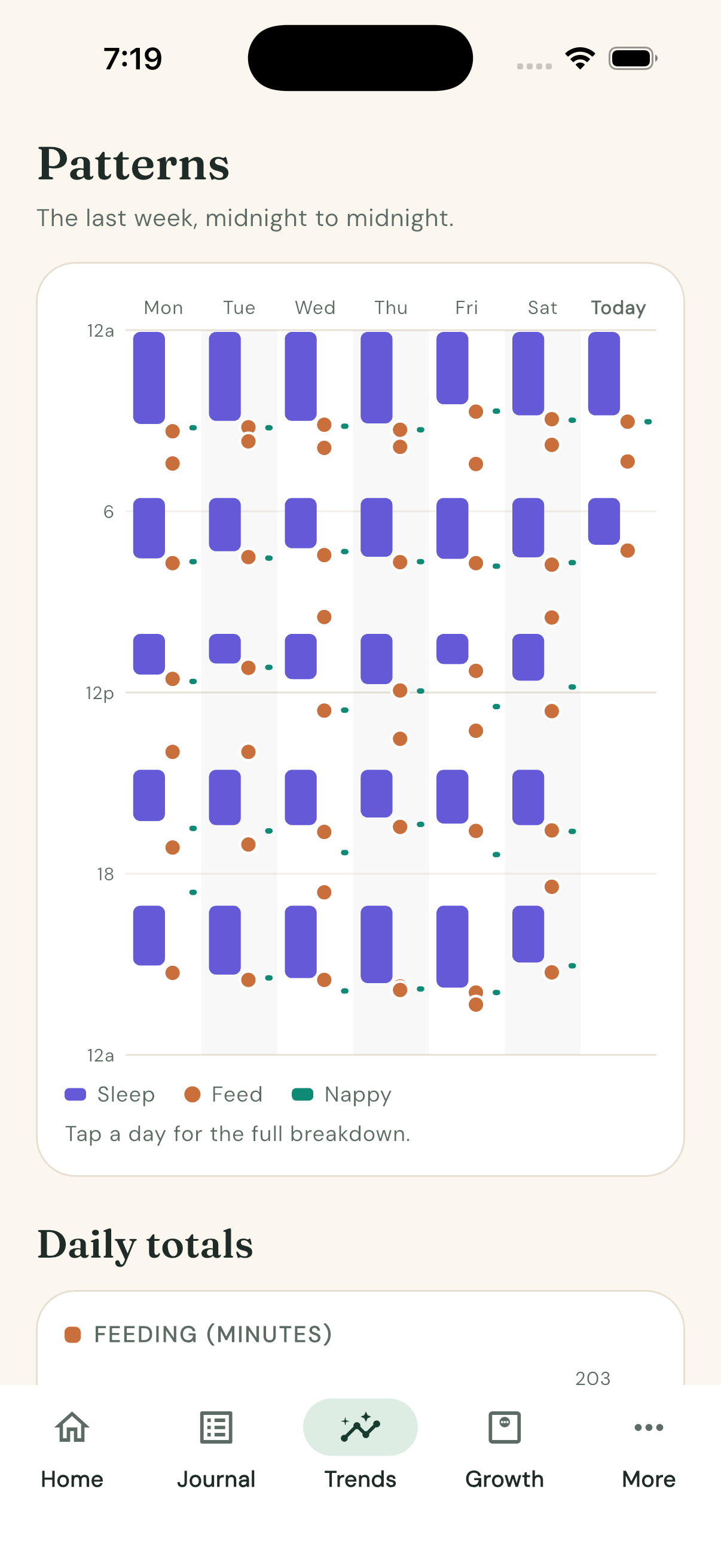
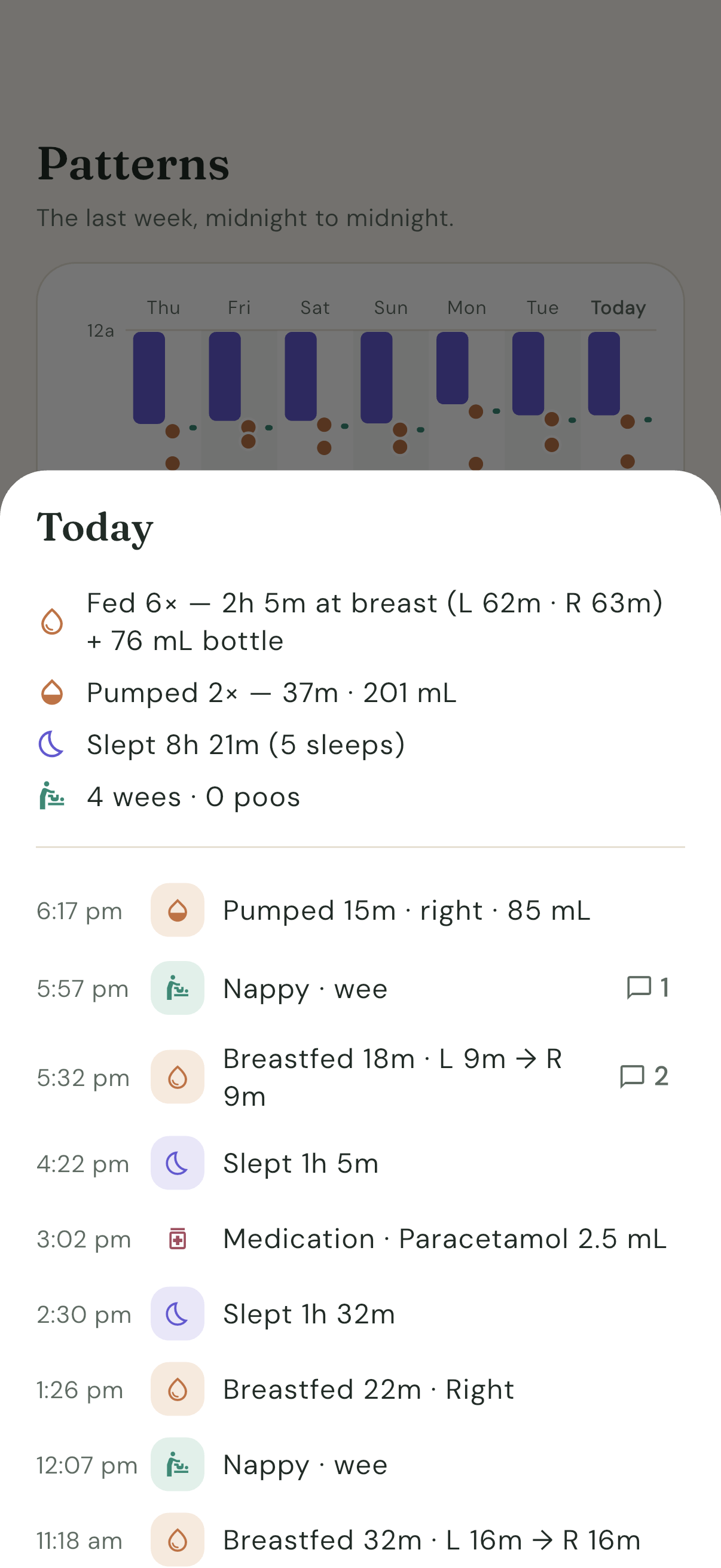
- Open the Trends tab. The top card is titled Patterns — "The last week, midnight to midnight."
- Read it as seven columns, one per day, oldest on the left and Today on the right (Today's label is bold).
- Time runs downwards within each column: midnight ("12a") at the top, midday ("12p") halfway, back to midnight at the bottom. Gridlines mark every 6 hours.
- Within a column, three kinds of mark:
- Sleep — violet vertical spans. The taller the span, the longer the sleep. A sleep that crosses midnight appears in both days' columns.
- Feed — dots at the time each breastfeed or bottle started.
- Nappy — small ticks on the right edge of the column.
- Look across columns at the same height to compare days — a cluster of feed dots at the same height each day means the routine is settling.
Drill into a whole day
- Tap anywhere in a day's column. As the chart says: "Tap a day for the full breakdown."
- A bottom sheet opens for that day (titled "Today" or e.g. "Thursday 3 September"), showing:
- feeding totals, e.g. "Fed 8× — 1h 12m at breast (L 40m · R 32m) + 60 mL bottle", plus a pumping row if you pumped;
- total sleep and number of sleeps;
- nappies changed, then how many had a wee and how many a poo, e.g. "6 nappies · 6 wee · 1 poo" (a mixed nappy counts once as a nappy, and once in each of wee and poo);
- then every event for the day with its time and colour-coded badge.
- Drag the sheet up for the full list, or swipe it down to close.
Read the daily totals bars
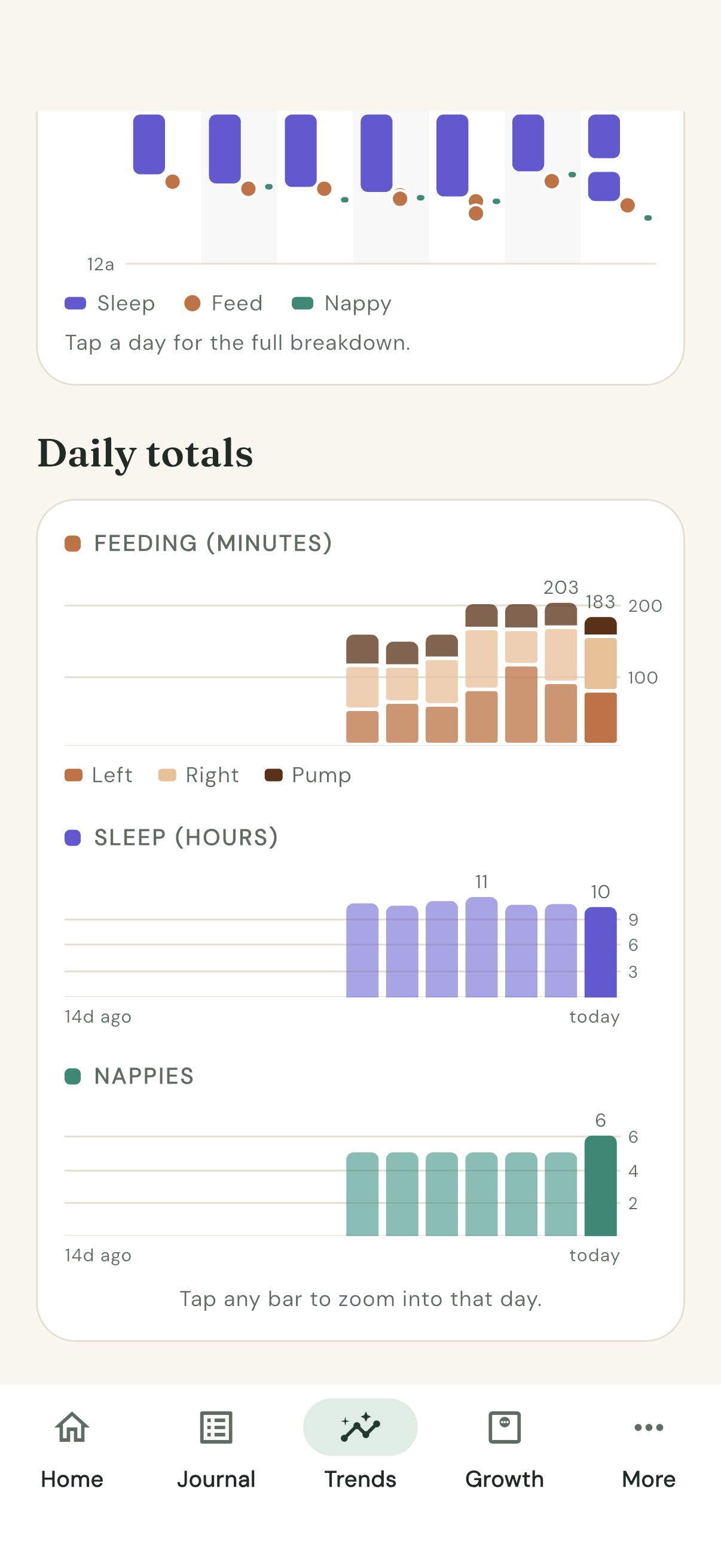
- Scroll below the pattern chart to the Daily totals card. It covers the last 14 days, oldest to newest.
- FEEDING (MINUTES) is a stacked bar per day: Left breast, Right breast and Pump minutes in three shades of the feeding colour. The busiest day and the latest day are labelled with their total minutes.
- SLEEP (HOURS) and NAPPIES are simple bars per day, each labelled on the peak and latest day. NAPPIES counts nappy changes: a nappy with both a wee and a poo is one nappy.
- Faint horizontal lines run across each chart at round numbers, numbered on the right (for example 3, 6 and 9 hours), so you can read any day's bar at a glance, not just the labelled ones.
Zoom into one activity for one day
- Tap any bar — "Tap any bar to zoom into that day." Tapping a feeding bar opens a focused day sheet titled e.g. "Feeding · Today"; sleep and nappy bars open their own focused sheets.
- The focused sheet leads with a 24-hour strip graph of just that activity:
- the feeding strip draws each breastfeed as a span split into its real Left and Right segments, with Bottle feeds translucent and Pump sessions on a second lane;
- the sleep strip shows asleep spans; the nappy strip marks Wee and Poo / mixed.
- Below the strip are that activity's totals and its timed events for the day.
Tips
- Charts need data: until you've logged a bit, the Patterns card says "Patterns appear here once you've logged a day or two."
- Everything above adapts to dark mode automatically — Joey follows your system theme, so late-night chart reading is easy on the eyes.
How to use the sleep forecast
A guess at when bub will next be ready to sleep, from bub's own naps. A guide, not a promise.
The sleep forecast is new and, for now, tucked away: it is one of the rows that appear after you tap the version line at the bottom of the More tab eight times. If you've been told how to switch it on, this page is what it does.
What it shows
Once it is on, the Sleep card on the Home tab grows a band:
Next sleep likely 10:40 – 11:10 am · Fairly steady
- It is always a range, never a single time. The range is sized so that bub's next sleep starts inside it about four times in five.
- The small bar underneath shows when bub woke, where "now" is, and where the range sits.
- The last line is the one to act on: Wind down from about 10:25 am. Watch for tired signs. Tired signs always beat the clock.
- The word in the pill says how settled the pattern is. Settling in means Joey has only a few days of logs, or bub's days vary a lot, so the range is wide. Fairly steady and Steady mean the range has tightened.
Tap the band at any time to open the forecast's own page.
Where the forecast comes from
Joey looks at bub's own recent sleeps: what happened on days like today, at this time of day, after a sleep like the one that just ended. It leans more on the last few days than on last month, so it follows bub as they change. For bedtime it also learns bub's usual bedtime and uses it once that proves more reliable than the day's rhythm.
It needs bub's date of birth (More → Baby profile) and starts at about six weeks. Before that, newborns sleep when they need to, and feeding on demand matters more than any clock; the band says how many days until forecasts begin.
What else the band can say
- Woke 8:21 am · next forecast after this sleep while bub is asleep.
- Night · next forecast after the morning wake between bedtime and the morning. Joey doesn't forecast night wakings.
- Awake since 4:20 pm — looks like a sleep wasn't logged? when bub has been "awake" far longer than usual. Add the missing sleep from the Journal and the forecast returns.
Saying how it went
After you tap Wake up in the app, if a forecast was showing before that sleep, Joey asks once: How did the forecast go? It tells you whether the sleep started inside the range, and you can give one to five stars (Way off to Spot on) or skip. Your stars sync to the rest of the family like any entry and help the forecast improve.
The Trends tab shows How close we've been: how many of the last ten sleeps started inside the range, the typical miss in minutes, the typical width of the range, and your ratings.
What is shared when it is on
The forecast is worked out on your phone. To make forecasts better for every family, turning it on also sends us, on our own server: bub's sleep times as an age in days and a time of day (never a calendar date), each forecast the app showed and how it turned out, and any stars you give. It is tied to your family's random id, not a name, and includes no feeds, nappies, notes or other entries. Turning the forecast off deletes it. The forecast's own page says the same before you switch it on, and the privacy explanation has the detail.
Turning it off
Tap the band (or More → Sleep forecast) and choose Turn off sleep forecast. The band disappears, the Trends tile disappears, and what was shared is deleted.
A day with Joey
Learn Joey by following one full day of tracking, morning to bedtime.
This tutorial walks you through a realistic day with bub — a morning breastfeed, nappies as they happen, naps logged straight from a widget, an afternoon pump controlled from the lock screen, an evening bottle, and finally a look back at the whole day in Trends. By the end you'll have used every everyday feature of Joey without needing to read anything else.
You don't need any setup beyond the app itself. Everything you log lives on your phone straight away. (Sharing with other phones is optional and set up separately — How to set up family sync; Joey works perfectly as a single-phone tracker too.)
7:00 am — the morning breastfeed
- Open Joey. The Feeding card is at the top of the Home screen, with three buttons: Left, Right and Bottle. Notice one of the side buttons is filled in — that's Joey's suggested next side, based on which side the last feed ended on. There's also a hint underneath, like "Suggested next: left side".
- Bub latches on the left, so tap Left. A coloured banner appears at the top of the screen showing the feed is running — it reads "just started", then ticks over in minutes ("5m", "12m").
- About ten minutes in, you swap sides. On the banner, tap the Switch side button. The banner updates to the right side, and Joey remembers the switch — the history keeps every side change, not just the last one.
- When bub is done, tap Stop on the banner.
- Have a look at the Journal tab. Your feed is there with a colour-coded badge and an entry like "Breastfed 22m · L 10m → R 12m". That arrow is the mid-feed switch you made, with the time spent on each side.
That's the core rhythm of Joey: tap to start, a banner while it runs, tap to stop.
Through the day — nappies
Nappies aren't timed, so they're even quicker. On the Home screen, the Nappy card has three buttons: Wee, Poo and Mixed.
- After the morning feed, tap Wee. Done — one tap, logged instantly.
- Later in the morning there's a poo nappy: tap Poo.
- Mid-afternoon delivers both at once: tap Mixed.
Each one lands in the Journal with its own badge, and they'll all show up in the day's totals later.
9:30 am — naps, without opening the app
You've just settled bub for a nap and your phone is on the bench. You don't need to open Joey at all.
- On your home screen, find the Joey Sleep widget. Haven't added it yet? On an iPhone, long-press the home screen, tap Edit, then Add Widget, and search for Joey. On Android, long-press the home screen, tap Widgets, and find Joey.
- Tap Fell asleep on the widget. Joey starts the sleep timer in the background — give it a second or three; it's doing the work without opening the app.
- When bub wakes at 10:45, tap Wake up on the same widget. The whole nap is recorded and you never unlocked the app.
If you do open Joey while a nap is running, you'll see it on the Sleep card, and between sleeps the card shows how long bub has been awake.
2:00 pm — the afternoon pump, from the lock screen
Time to pump while bub naps.
On the Home screen, find the pump row on the Feeding card — it shows something like "Last pump 4h ago". Tap Start pump and choose Left from the menu.
The Feeding card now shows the pump running:
Lock your phone. Joey puts a Live Activity on the lock screen — the pump title with a live stopwatch, plus a ⇆ switch button and Stop right there. (The first time a timer runs, iOS asks "Allow Live Activities from Joey?" — tap Allow.)
Halfway through, swap the pump to the other side by tapping ⇆ on the lock screen — no unlocking needed. The activity updates to the right side immediately.
When you're finished, tap Stop on the lock screen. The pump session is saved to the Journal, recorded against the side it finished on.
The same Live Activity appears for breastfeeds, bottles and sleeps too, and on newer iPhones it also lives in the Dynamic Island.
6:30 pm — the evening bottle
Dad's turn to feed, with expressed milk from this afternoon.
On the Feeding card, tap Bottle. A bottle banner starts running, just like the breastfeed one.
When bub's finished, tap Stop on the banner. Joey asks "How much did bub take?" — this is where the volume goes in, at the end of the feed, once you can actually see how much is gone from the bottle.
Type the amount in mL and confirm. (If you genuinely don't know, there's a Finish without amount button — and if the number turns up later, just tap the entry in the Journal and add it. The same tap-to-edit fixes a bottle stopped with Stop on a widget or the lock screen. On the lock screen, Add mL asks for the amount as it stops the feed. See How to edit or backdate entries.)
8:00 pm — reviewing the day in Trends
Bub's down for the night. Time to see how the day looked.
Open the Trends tab. The Patterns chart shows the last 7 days as vertical columns, running midnight to midnight from top to bottom — sleep as long spans, feeds as dots, nappies as small ticks. After a few days you'll start to see the day's shape at a glance.
Tap today's column. A breakdown sheet slides up with the whole day in one place: breastfeeding minutes split Left and Right, pump totals, the bottle's mL, sleep hours, the nappy count, and a list of every timed event.
Scroll down on the Trends tab and you'll also find daily totals — FEEDING (MINUTES), SLEEP (HOURS) and NAPPIES bar charts. Tapping any bar opens a focused version of the day sheet for just that activity, led by a 24-hour strip graph.
What you've learnt
In one day you've used all of Joey's everyday tools:
- Starting, switching and stopping a breastfeed, and reading the "L 10m → R 12m" entry in the Journal
- One-tap nappy logging: Wee, Poo and Mixed
- Logging a whole nap from a widget without opening the app
- Running a pump from the lock screen, including switching sides mid-session
- A bottle feed with the volume entered at the end
- Reviewing everything in Trends and the day breakdown sheet
From here, explore the Growth tab (WHO centile charts, once you've set bub's date of birth and sex in More → Baby profile) and the More tab for health logging, notes and milestones — and set up Family sharing so everyone's phones stay in sync.
How to delete your data
Getting your data out, and making Joey forget — one phone, or the whole family.
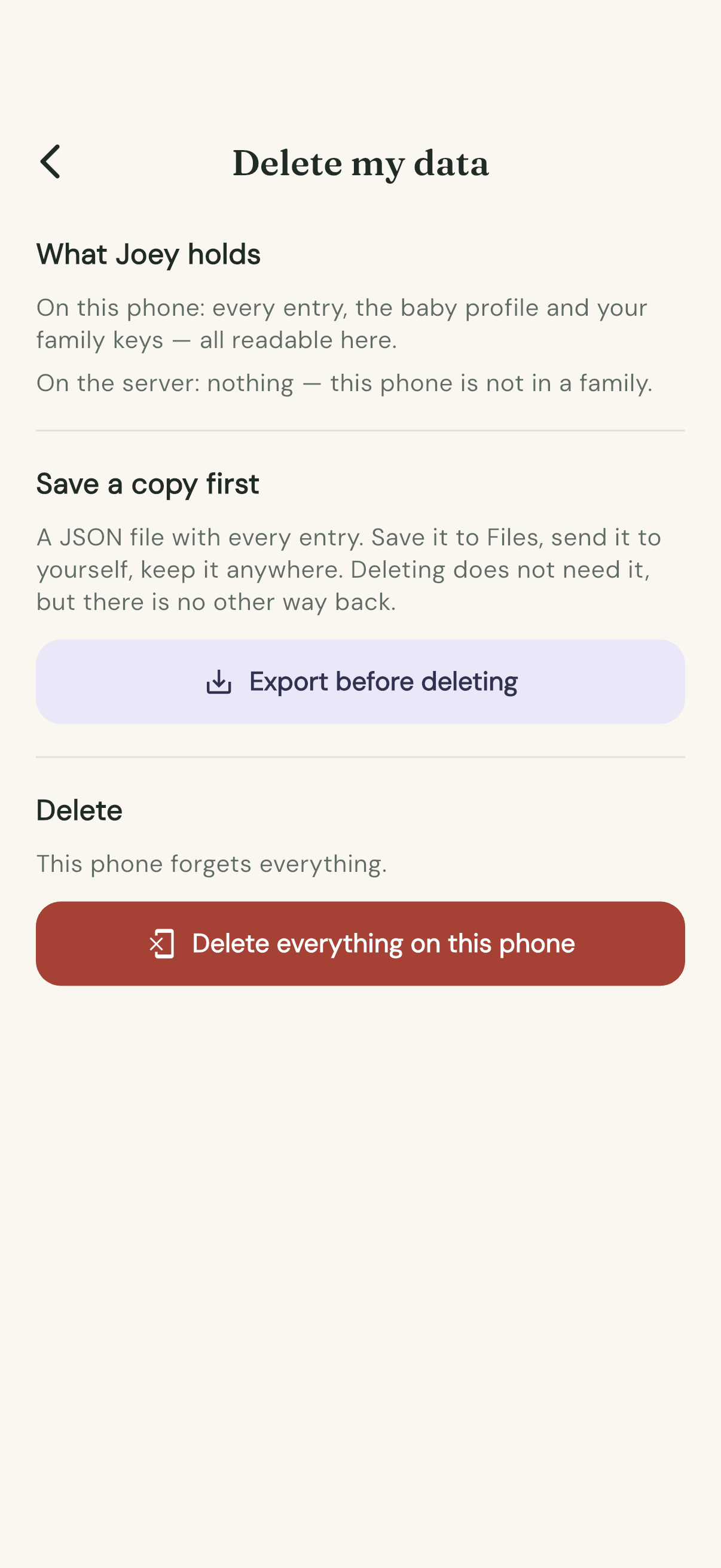
Open More → Delete my data. The screen tells you what Joey holds and where, then gives you the choices in order.
1. Save a copy first
Tap Export before deleting. You get a file with every entry in it — save it to Files, send it to yourself, keep it anywhere.
You don't have to. But there is no other way back.
2. Delete everything on this phone
Every phone has this button. The phone leaves the family, then forgets everything: the entries, the baby profile and the family's keys. Widgets and lock-screen timers go blank.
The other phones and the family's shared history are untouched.
This works with no internet.
3. Delete the family everywhere
This button only appears on a parent's phone.
The family's entries and its list of phones are wiped from the server straight away, and then this phone is wiped too. The other phones lose access.
The phone needs to be online. If it can't reach the server, nothing is deleted.
Both deletes make you type delete before the red button will work. Nothing is recoverable afterwards. That's the point.
What the other phones see
After "Delete the family everywhere", every other phone shows a notice at the top of Home: "This family was deleted from another phone" with the date, and "Your copy is still on this phone."
Three buttons go with it:
- Export — save that phone's copy to a file.
- Delete everything on this phone — opens this same screen.
- Keep my copy — the phone leaves the family and carries on by itself, keeping everything it has.
Nobody's copy disappears from under them.
Why a parent can delete everyone's copy
Joey has no accounts, and the server can't read anything it holds. The only authority in the family is the family itself — and who counts as a parent is recorded inside the encrypted history that only your phones can read. So Joey shows the family-wide delete on parents' phones only.
Just want a copy, not a deletion?
More → Export data saves every entry to a file any time, with nothing deleted.
Something looks wrong
What Joey's warnings mean, what to try, and how to get help.
Joey tells you when something isn't right rather than quietly getting it wrong. Here's what each message means.
"Sync problem" at the top of Home
A red bar across the top of the Home tab, reading Sync problem and then what went wrong. It means the last attempt to catch up with the other phones didn't work.
Most of the time it's the internet, not Joey. Nothing you've logged is lost — it's all on your phone, waiting to go across.
Try this, in order:
- Check the phone is online. Open any web page.
- Open Joey on the other phone too. Phones catch up fastest when the app is open on both.
- Go to More → Family sharing and tap the refresh arrow on the Syncing row.
- Close Joey completely and open it again.
If the bar is still there after a few minutes of being online, email us.
If it says Joey is waiting for the family's new key, a phone has just been removed from the family and the new key is on its way. It clears by itself within a minute or so.
"Can't open this phone's family key"
Now and then, usually after the phone has been locked for a while or has just restarted, Joey can't reach the key that connects this phone to your family. Home shows Sync problem — can't open this phone's family key right now, and More → Family sharing says it can't open this phone's family.
Nothing is lost, and this phone is still in your family. Everything you log stays on the phone and goes across as soon as the key opens again.
Joey keeps trying by itself, and it usually clears within moments of unlocking the phone. To try straight away, go to More → Family sharing and tap Try again.
Don't create a new family to fix it — that would split this phone from the others. If it hasn't cleared after a few minutes with the phone unlocked, email us.
The Syncing row in Family sharing
More → Family sharing always shows how sync is going:
- Syncing with a ticked cloud — all good. Changes reach the other phones within seconds while the app is open.
- Sync problem with a crossed-out cloud — the same message as the Home bar. Tap the refresh arrow to try again now.
"This family was deleted from another phone"
A grey notice at the top of Home. Someone on a parent's phone chose to delete the family everywhere.
Your copy is still on this phone, and you decide what happens to it:
- Export — save everything to a file first.
- Delete everything on this phone — let it go.
- Keep my copy — this phone leaves the family and carries on alone, keeping every entry.
Nothing is removed from your phone until you pick one. See How to delete your data.
"This phone has been removed from the family"
A parent removed this phone. Entries made on it stay on it, but it won't see anything new.
If that was a mistake, ask a parent to add it again — it's the same two-scan approval as the first time. Anything logged on this phone meanwhile is kept and goes across, and the family's history comes back with it. See Set up family sync.
"That welcome code was made for a different phone"
You're joining, and the parent scanned the wrong code — another phone's, or an older one from an earlier attempt.
Show the join code on this phone again, have them scan that, and scan the new welcome code they get back.
"Waiting for the device list to sync…"
The phone has joined but hasn't received the family's list of phones yet. Leave Joey open on both phones for a moment. If it doesn't fill in, check the Syncing row above it.
A timer is stuck on the lock screen
Swipe the card sideways off the lock screen. Joey usually tidies these up by itself the next time it syncs or you open the app.
A widget looks out of date
Android widgets are still pictures the phone redraws now and then, so a widget can sit a few minutes behind. Tap it, or open Joey, and it catches up. If a widget shows a time you don't recognise, check More → Widget times — it might be showing clock times ("fed at 3:04 pm") where you expected "2h ago".
An entry is wrong
Nothing is set in stone. Tap the entry in the Journal to fix its times, sides, amounts or text; swipe it left to delete it; tap Undo if you delete the wrong one. See How to edit or backdate entries.
Still stuck?
Email joey@medapps.com.au. Helpful things to include:
- What you saw, word for word if there was a message.
- Which phone — iPhone or Android, and whose.
- What you were doing just before.
- Whether the other phone in the family shows the same thing.
Don't delete anything to try to fix a sync problem. Ask first — your entries are safe on the phone, and deleting is the one step that can't be undone.
Privacy and sync: how family sharing works
What Joey holds, what the server can see, and why there's no account.
When a baby feeds, sleeps and is medicated is a minute-by-minute diary of a household. Joey is built on the position that the server should be physically unable to read any of it. Everything else follows from there.
The plain-language privacy statement lives at https://joey.medapps.com.au/privacy.
One thing worth saying plainly: the only usage numbers Joey keeps are our own tally on our own server — how many families and phones there are, and which days each phone synced. They are tied to a random device id, not to a person, and nothing is sent to Google or any other analytics service. There are no ads and no trackers in the app. Occasionally we may send a short notice inside the app — to ask for feedback, say — and record only which phones have shown it; see Notices from Joey.
Why there are no accounts
No sign-ups, no emails, no passwords, no profiles. Instead, one parent creates a family on their phone, and every other phone is approved in person: the new phone shows a code, a parent scans it, and the family's encryption key is handed over sealed to that one phone.
This is deliberate, not a shortcut.
- An account system is a database of who you are — names, emails, passwords. A private family app has no business holding that. Joey's server doesn't know who you are. It only knows that a request came with the right key to the right family.
- Grandparents don't want another account. Joining is two scans with a parent in the room, not a registration form.
- Membership is a parent's decision, phone by phone. Parents see every phone in the family and can remove any of them. Helpers can't invite anyone. And no code Joey ever puts on screen contains a secret — a screenshot of a join code or a welcome code gets you nothing.
- The recovery document is the one secret. It's made on the phone when the family is created. It exists because the encryption cuts both ways: if every parent's phone were lost at once, nobody — by design — could let you back in.
Encrypted before it leaves your phone
Every entry is encrypted on your phone before it's sent anywhere. What the server stores is a scrambled bundle it has no way to open. It can't tell a nappy from a milestone.
The key that unlocks it is made on the first parent's phone and never sent to the server — not when the family is created, not during sync. It travels only sealed to one specific phone, or inside the recovery document you printed. Each phone keeps it in the phone's own secure storage.
If anything about a stored entry were tampered with in transit, it simply wouldn't unlock, and Joey would tell you rather than show you something wrong.
Two honest consequences:
- Lose the keys, lose the shared history. There's no "forgot password". The server can't help, by design. That's what the recovery document is for — keep it somewhere real. (Each phone still has its own copy of everything.)
- No website, no emailed summaries, no server-side reports. All of them would mean giving the server the key. The app is the viewer, on both phones. That trade was made knowingly.
What the server can and can't see
Fair is fair — here's both columns.
It can see:
- That a family exists, and when it was created.
- That entries exist, and roughly when each was last changed — so it can tell that something was logged around a given time, and how busy the family is. Someone watching closely could guess at a day-and-night rhythm.
- How big each stored entry is, and the internet addresses connecting to it, like any web server.
- Enough to wake each phone up when another one has something new.
- How often each phone checks in — kept as counts, and only ever looked at as totals.
It cannot see:
- Anything inside an entry — the type, the times, the sides, the volumes, the medicine names, the notes, or the baby's name.
- The family's phones — their names, who is a parent, or how many there are in the list. That's encrypted too.
- Who anyone is. No names and no email addresses are ever collected.
How current is "in sync"?
While Joey is open on a phone, it checks for changes every few seconds and sends up anything you've just logged. So a feed started on one phone appears on the other within seconds, and either of you can stop it — the most recent change wins.
A phone that's been in a pocket also gets a quiet, contentless wake-up when another phone logs something, so it usually keeps up without being opened. Worst case, a phone that's been away all day catches up the moment Joey is opened.
If two phones edit the same entry at the same moment, the later edit wins, whole. For "when did bub last feed", that's the right trade.
The sleep forecast is the one exception
Everything above is true of every entry you log. The sleep forecast, when you turn it on, is the one feature that sends us more than counts: bub's sleep times as an age in days and a time of day (never a calendar date), each forecast the app showed and how it turned out, and any stars you give. It is tied to your family's random id, not a name, and includes no feeds, nappies, notes or other entries. It goes only to our own server, is used only to judge and improve the forecast for every family, and is deleted when you turn the forecast off or delete your family. The forecast explains this before you switch it on; see How to use the sleep forecast.
Design decisions
Why Joey behaves the way it does.
Joey was built for one person: a sleep-deprived parent glancing at a phone at 3 am. Nearly every opinionated choice traces back to them, and to two complaints about the app Joey replaced. Here's the reasoning behind the ones worth explaining.
Minutes, not seconds
The original brief was blunt: show hours and minutes rather than seconds, so it's not distracting. A ticking seconds counter turns a lock screen into a stopwatch you can't stop watching. "2h 5m ago" answers the question you actually have — is it time to feed again? — without demanding your attention.
So every duration and every "time since" is hours and minutes: the Home cards, the Journal, the widgets, the Today summary. Widgets change once a minute, so nothing on your home screen ever ticks. A running timer says "just started" for its first minute, then "27m", then "1h 05m".
Seconds leak in one place only: the stopwatch on a running timer on the lock screen. A live ticking timer is the only kind a phone will keep updating on a locked screen, so that one is a platform rule, accepted rather than fought.
One "Feeding", not nursing versus bottle
The app Joey replaced tracked nursing and bottles as separate activities with separate totals. For a mixed-feeding baby that was the main complaint: when bub breastfeeds and then tops up with a bottle, "how much has she fed today?" has one answer, not two.
Joey treats feeding as one activity with two measures. Home has a single Feeding card — Left, Right, Bottle. The Today summary gives one feeding line combining breast minutes and bottle mL. Trends stacks them in the same chart. Even mid-feed, the running breastfeed banner has a Move to bottle button: one tap ends the breastfeed and starts the bottle, because to the parent it's the same feed carrying on.
The suggested next side
The advice is to alternate starting sides, but at 3 am nobody remembers which side the last feed ended on. Joey remembers: the Feeding card fills in the suggested button and says "Suggested next: left side".
The suggestion is the opposite of the side the last feed finished on, mid-feed switches included. A feed logged as "Left → Right" suggests Left next.
It's a suggestion, not a rule. Both buttons are always live, and tapping the "wrong" one is never questioned. The app advises; the parent decides.
The bottle volume is asked at the end
Joey asks "How much did bub take?" when you stop a bottle, not when you start it. That's when you know. Babies refuse bottles, fall asleep halfway, or drain an unexpected top-up — a number typed up front would usually need correcting.
Finish without amount is always there, because a feed with no volume recorded still beats a feed not logged at all. A bottle stopped from a widget or the lock screen has nowhere to type a number, so it saves without one — and the fix is one tap: open the entry in the Journal and add the mL (How to edit or backdate entries).
Why pumping wears feeding's colour
Every activity has a colour family — feeding, sleep, nappies — used the same way on cards, journal badges and charts. Pumping sits inside the feeding colours rather than getting a hue of its own. That was a choice, not an oversight:
- A fourth distinct hue stopped being reliably distinguishable from the sleep colour for people with colour blindness. A palette you can't tell apart at a glance defeats the point of colour-coding.
- It fits the meaning: pumping is milk, part of the feeding story. In Trends it appears in the feeding lane, which is where you'd go looking.
The pump icon and label carry the distinction. The colour carries the category.
Australian English throughout
The app Joey replaced speaks American — "diaper", ounces — which reads foreign in an Australian home. Joey is deliberately local: nappy (Wee / Poo / Mixed), breastfeed, volumes in mL, temperatures in °C, and "bub" where a friendly word is wanted. Even the name plays along: a joey is a baby kangaroo.
This sounds cosmetic and isn't. Joey is meant to be handed to a grandparent with no explanation at all. Every label matching the words the family already uses is part of that.
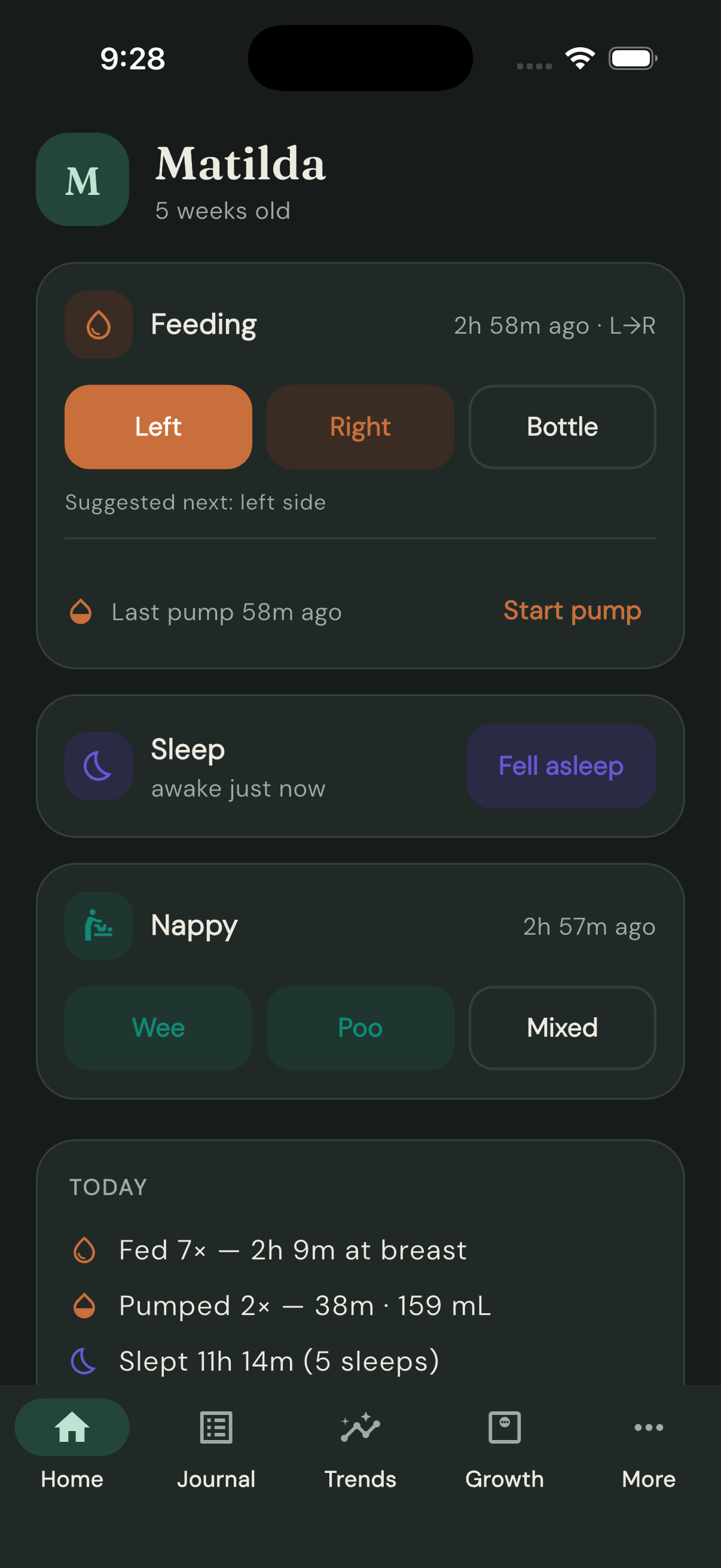
One more nod to the 3 am parent: dark mode is a proper hand-tuned theme that follows your phone's setting, so night-time logging doesn't light up the room.
About Joey
The page behind More → About Joey: why Joey exists, how privacy works, how to get started, and how to reach us.
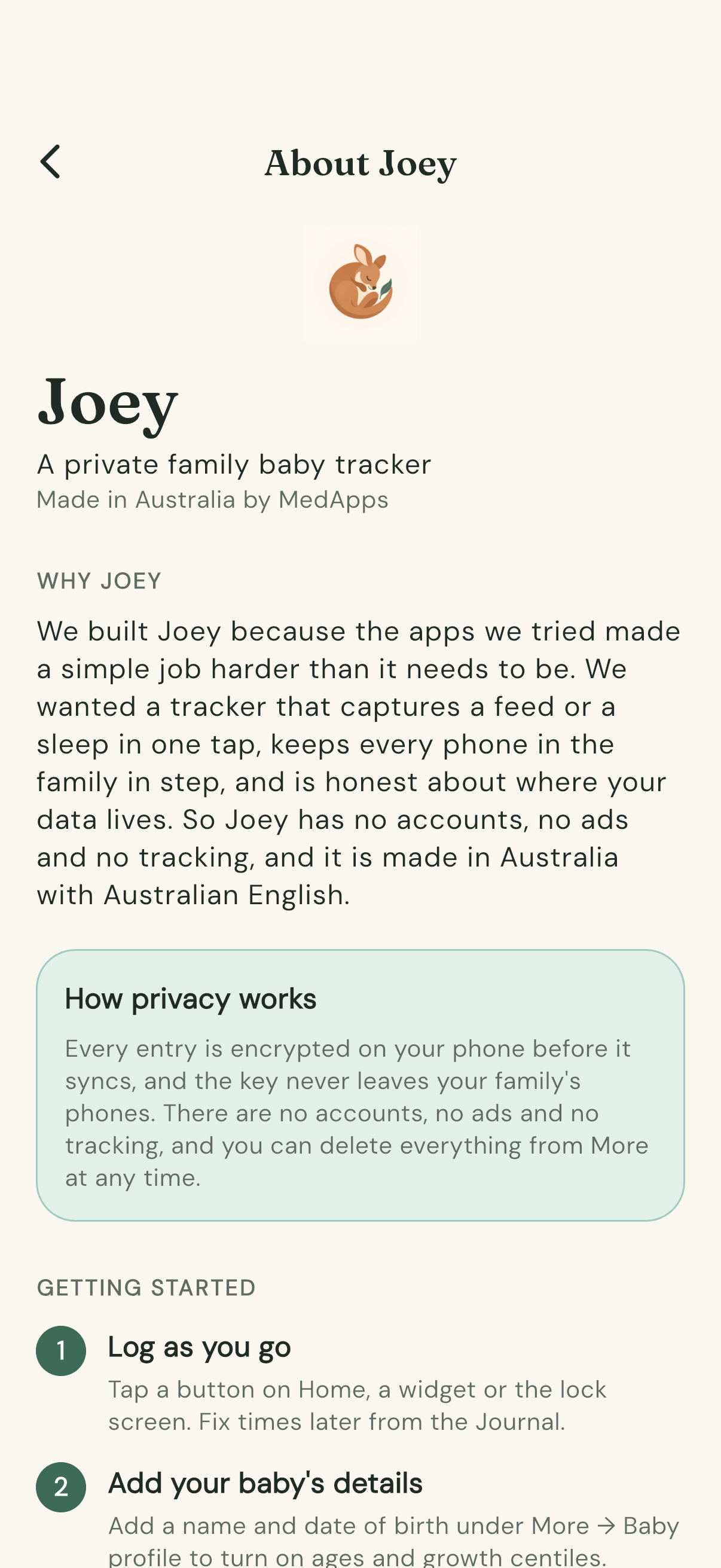
What's on it
- Why Joey — a few lines on why we built it: one-tap logging, every phone in the family in step, and honesty about where your data lives.
- How privacy works — the short version of Privacy and sync: every entry is encrypted on your phone before it syncs, the key never leaves your family's phones, and you can delete everything from More at any time.
- Getting started — three steps: log as you go, add bub's details, bring in the family. The long version is Getting started with Joey.
- The family guide — opens this guide in your browser.
- Privacy policy — the plain-language privacy statement.
- Get in touch — opens a mail draft to joey@medapps.com.au. Questions, problems, ideas: all welcome.
- Notices from Joey — a switch. Off, and every notice we send still appears inside Joey the next time it syncs. On, and your phone also shows a banner when one arrives. What a notice is and what we record: Notices from Joey.
- The version line at the bottom, handy when you're telling us about a problem.
Notices from Joey
Now and then we may send the family a short message inside the app. Here's what that is, what it isn't, and the one switch that goes with it.
What a notice is
A notice is a short message from the people who make Joey — to ask for feedback, say, or to warn about a change. It appears within a few minutes while Joey is open, or the moment you open it, once, as a sheet headed From Joey, over whatever you were doing. Nobody else in the family can send one, and nothing you've logged is involved.
Each notice comes with one of three buttons:
- OK — that's all, just something to read.
- A button that opens a web page — the label says where it goes.
- Reply by email — opens a mail draft addressed to us, with the notice's title as the subject. Write what you like, or close the draft.
Where there's a page to open or a reply to write, there's also Not now. Either way the sheet closes and doesn't pop up again: a notice is shown once per phone, whether or not you tapped its button.
It stays in the journal for a while
For six hours after it appears, the notice also sits in the journal, so you can read it again or use its button later. Swipe it away to remove it sooner.
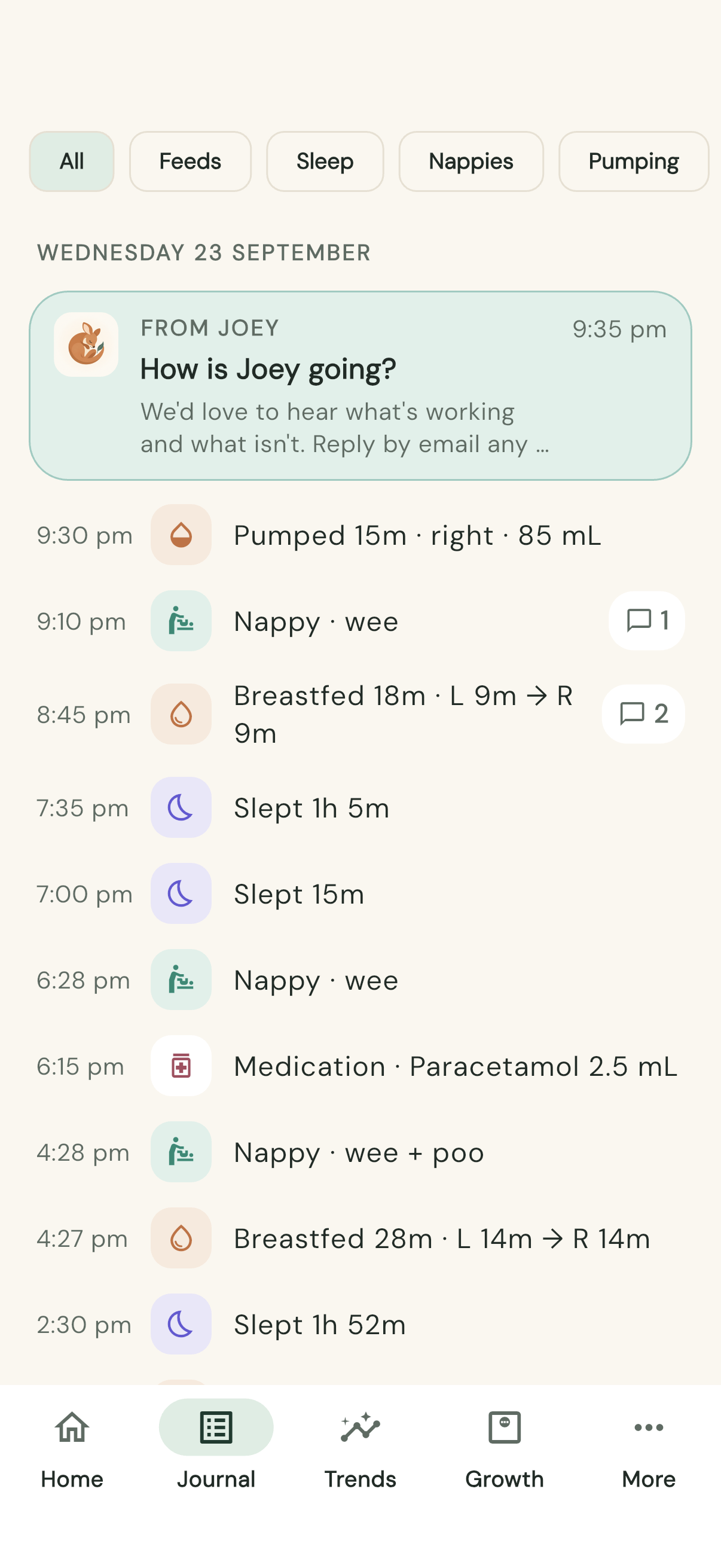
What we record
Only that this phone has shown the notice, so we can tell whether a message got through. Nothing about you, your baby, or what you logged — the same as the rest of Privacy and sync.
Banners
By default a notice appears only inside Joey. If you'd like a banner on the lock screen as well, turn on Notices from Joey in More → About Joey. An iPhone asks for notification permission when you do; an Android phone uses its own notifications setting for Joey. Either way, every notice still appears inside Joey — the banner is only a nudge to open it.